Quickstart with Burp
The Levo.ai Burp Suite add-on builds OpenAPI specs from traffic captured or proxied through Burp Suite.
Installation
Install from BApp Store
- Go to the BApp Store Levo Extension.
- Click Download BApp to download the
.bappfile. - If you're using a closed network, move the
.bappfile into your network. - In Burp Suite, go to Extensions > BApp Store, click the kebab menu (⋮), then select Import BApp file.
- Select the file you previously downloaded and click Open.
- The extension is installed and automatically enabled. It's added to the bottom of the list in Extensions > Installed.
note
Extensions process traffic in list order. You may want to adjust the Levo extension's position in the list if needed.
Configuration steps
-
Set the Levo Satellite URL.
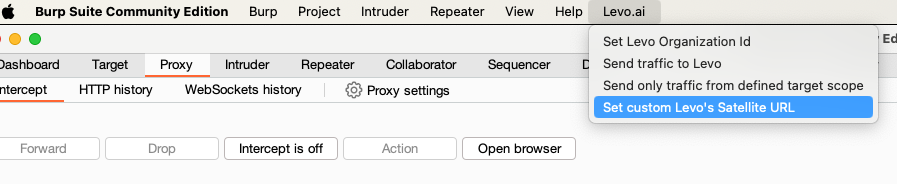
In the plugin settings, enter the Satellite URL - https://satellite.levo.ai
-
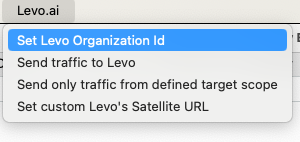
Set the Organization ID. Refer to Find your Organization ID.
-
Set Environment for Levo Dashboard.
-
Enable sending traffic to Levo.
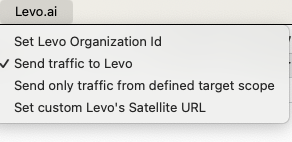
Toggle the setting to start sending traffic data to Levo.
-
Navigate to Levo Dashboard to view your instrumented API endpoints.
Need Help?
For further assistance, please reach out to support@levo.ai.
Was this page helpful?