Linear
Linear Integration
This integration allows Linear issues to be created directly from Vulnerabilities and Findings reported by Levo. Issue descriptions are written as Markdown, so they render natively in Linear and include a link back to the Vulnerability in Levo. Below are links to common tasks.
Add Linear Integration
- Prerequisites
- Ensure you have a Linear account with access to the team(s) you want Levo to file issues into.
- In Linear, open
Settings→Security & accessas shown below.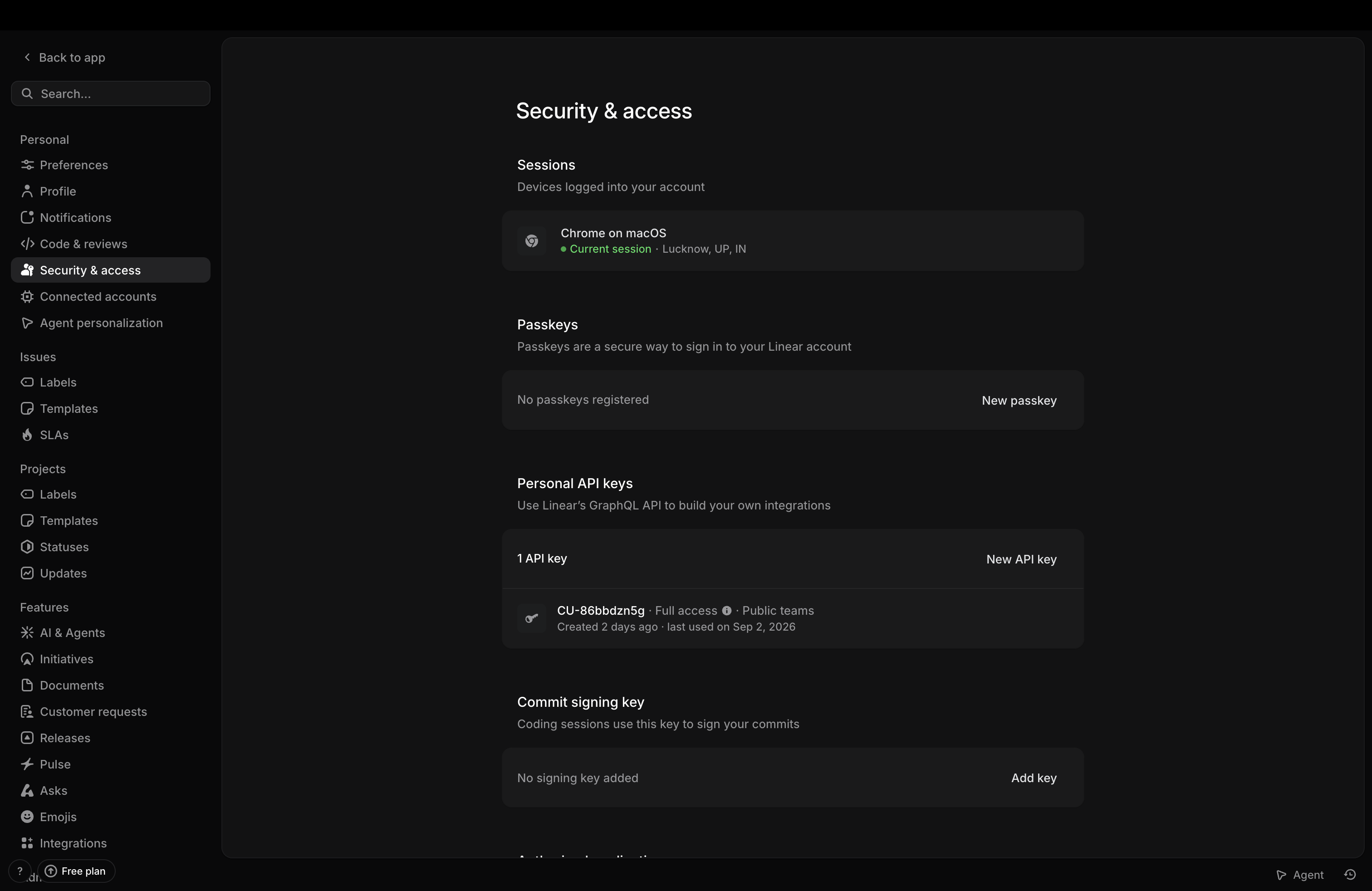
- Under
Personal API keys, clickNew API keyand give it aKey namesuch asLevo.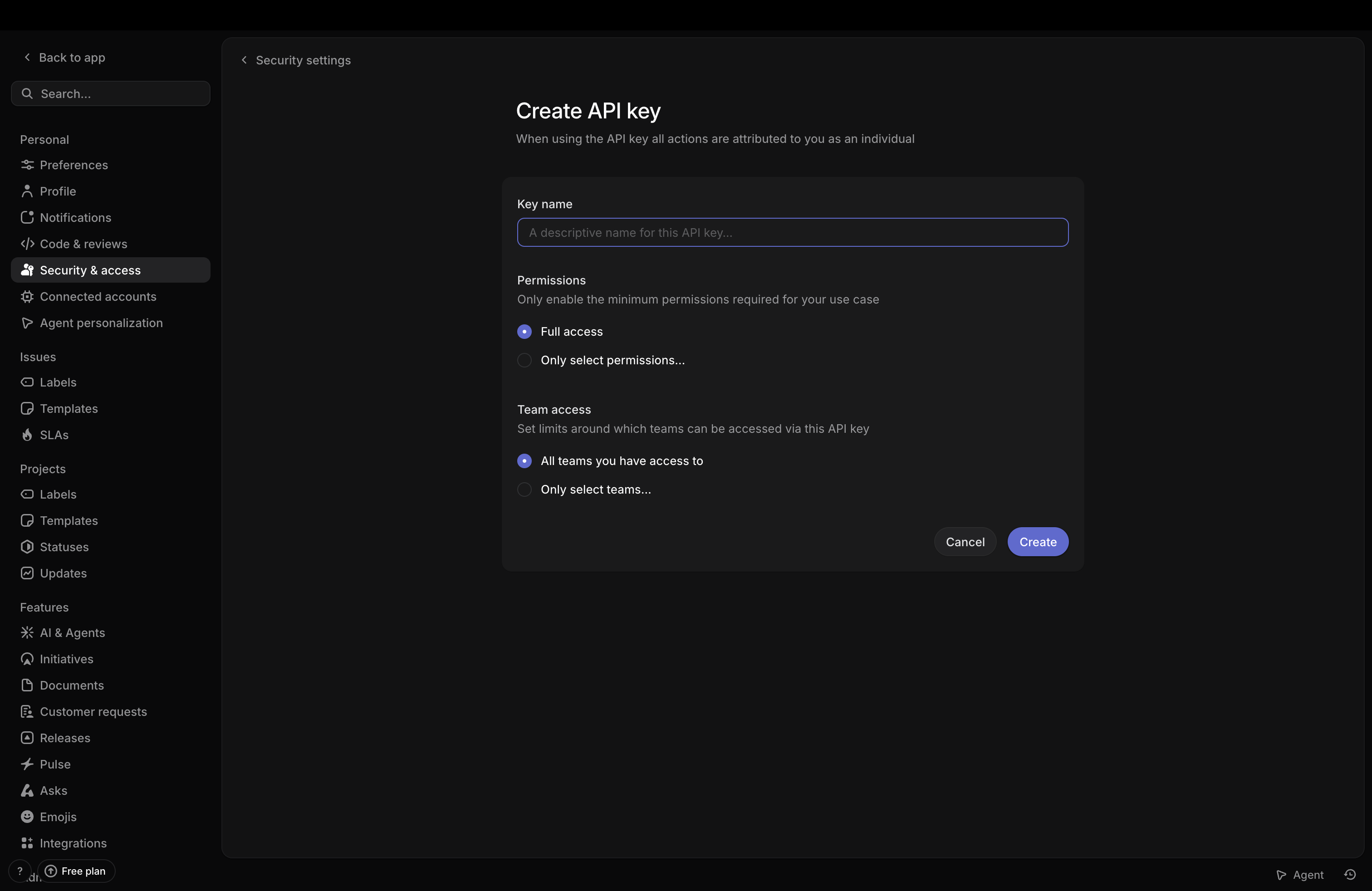
- Copy the API key. It begins with
lin_api_and is shown only once. - Identify the Linear
Teamthat will be the recipient for the issues created from Levo, and note down the team's name as it appears underSettings→Teamsin Linear.
Linear attributes every action taken with a personal API key to the user who created it, so we recommend minting the key from a dedicated service account rather than an individual's account.
Use Permissions and Team access on the key to grant no more than Levo needs — read access to teams and labels, and permission to create issues. Note that a team the key cannot reach will not appear in Levo's team list.
-
Enable Linear Integration
- In the Levo SaaS console, navigate to the Integrations screen as shown below, open the
Ticketing & Workflowcategory, and clickManageon theLineartile.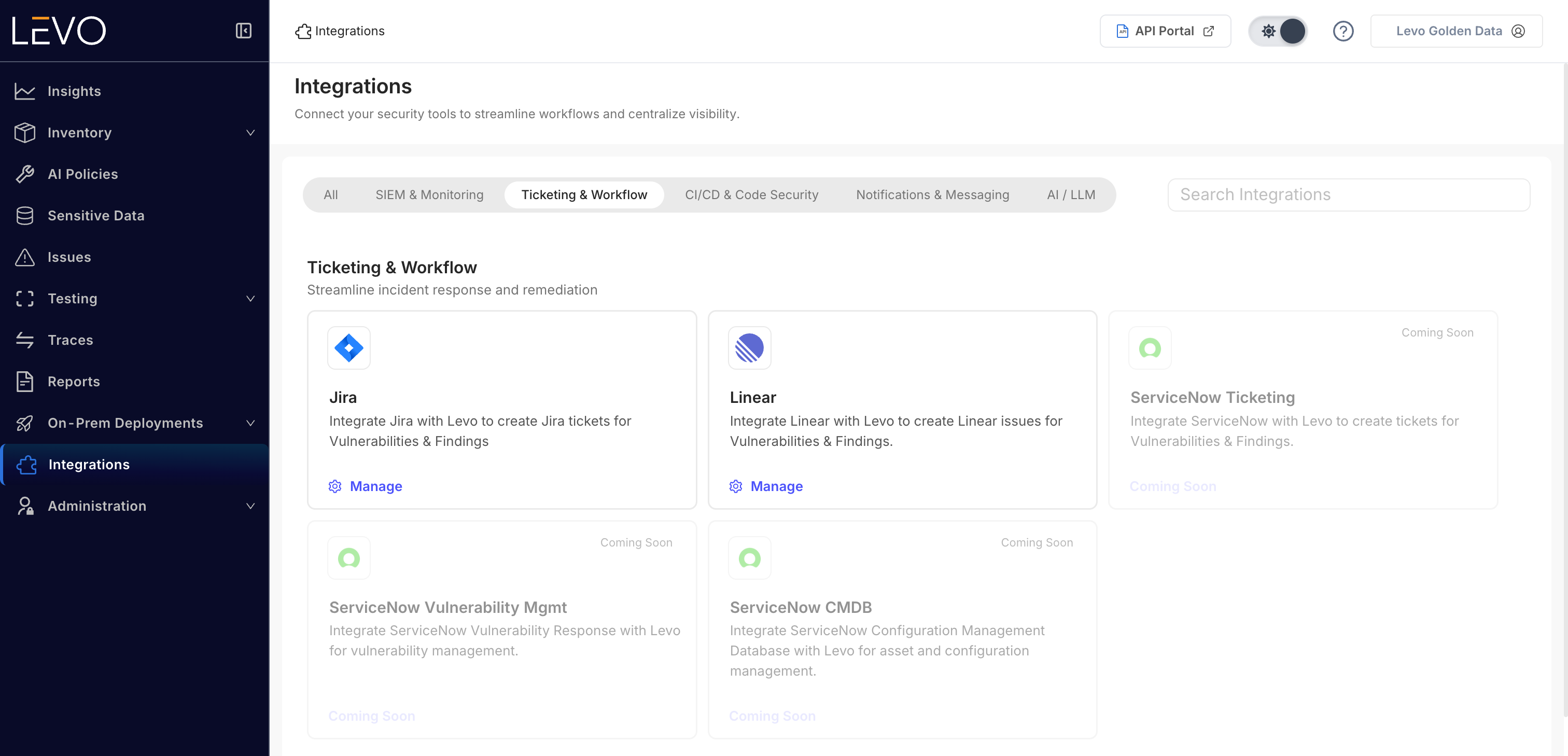
- Click
Add Integration, give the integration a name, and paste the API key.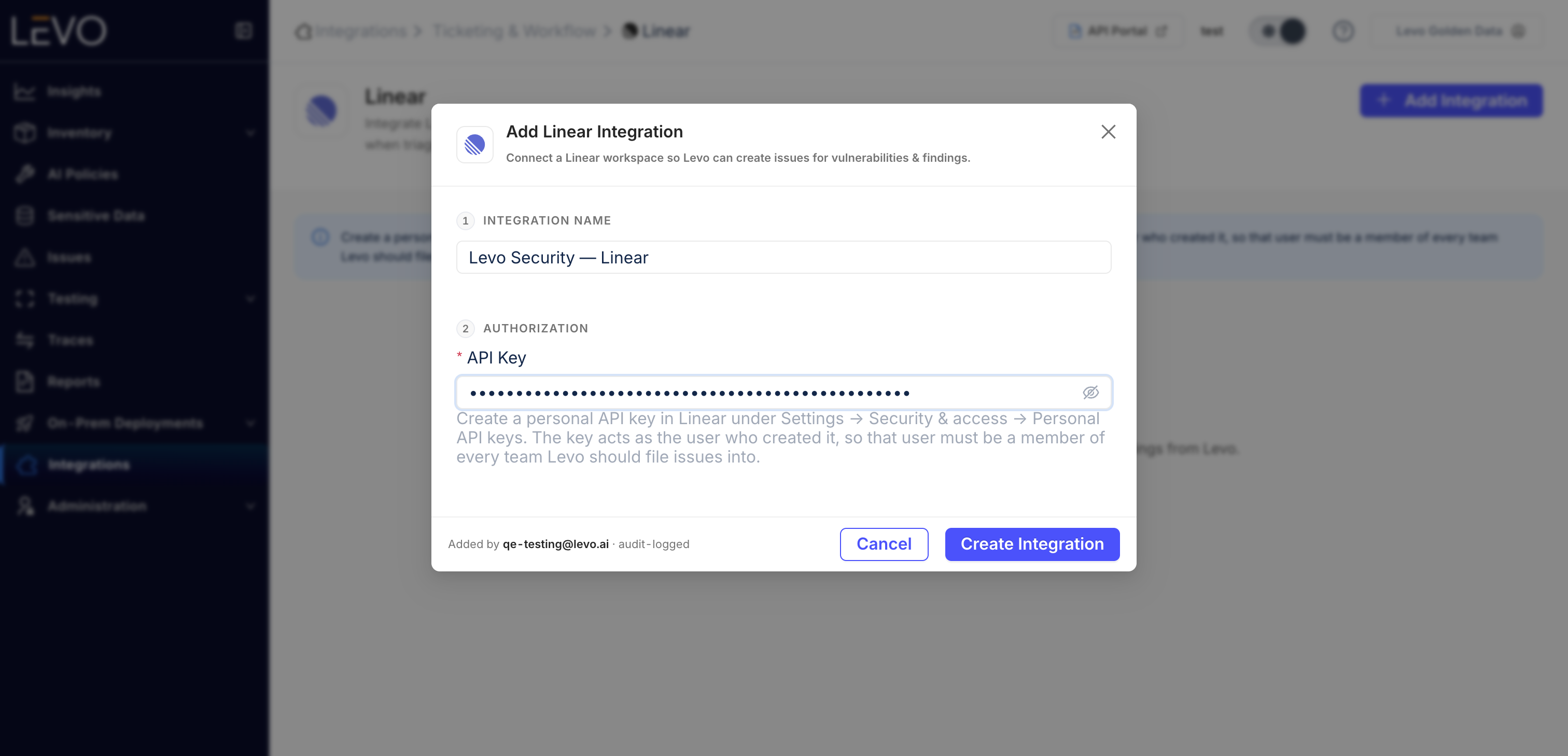
- Save the settings to enable the integration. Levo validates the key against Linear immediately, so a rejected key is never saved.
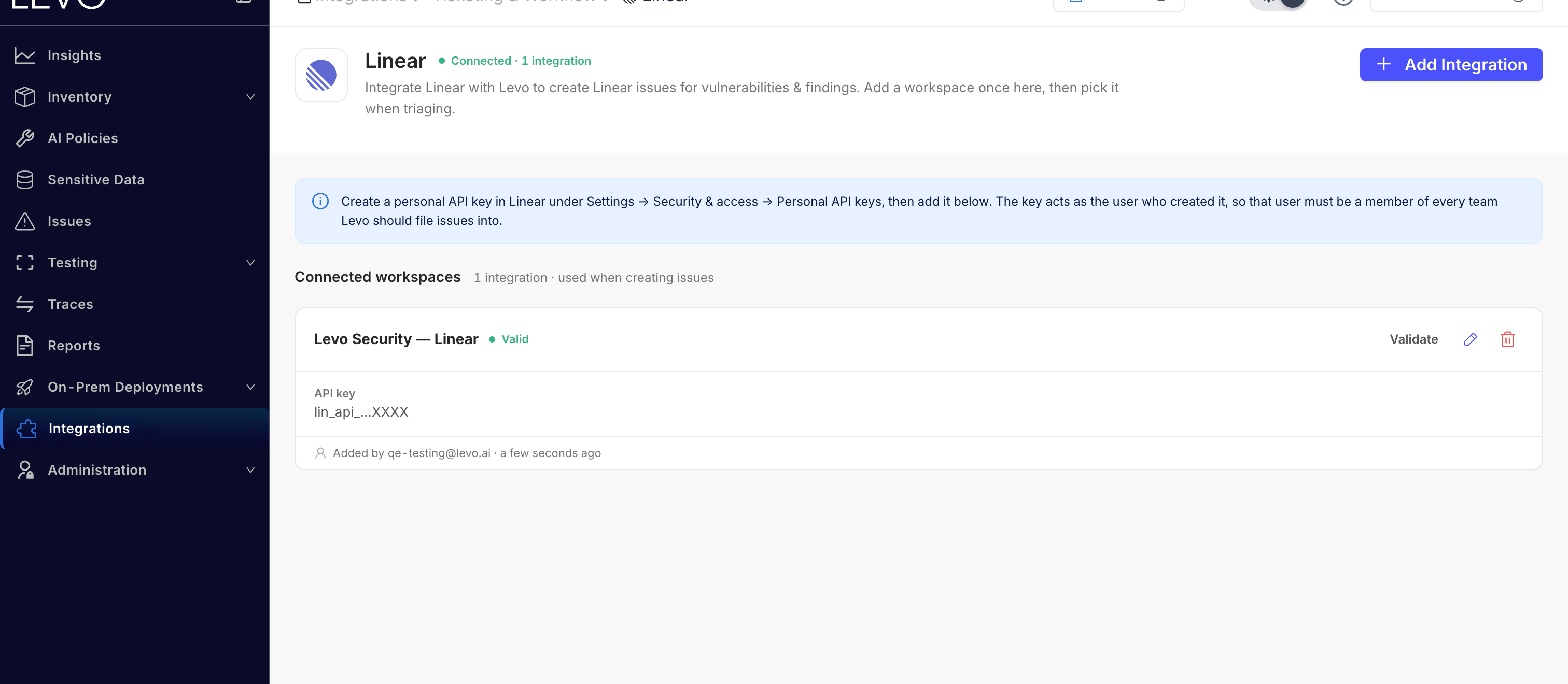
You can add more than one Linear integration to a workspace, each distinguished by the name you give it. Use
Validateon a saved integration to re-check that its key still works. - In the Levo SaaS console, navigate to the Integrations screen as shown below, open the
Congratulations! You have successfully enabled the Linear integration. Below are steps to create Linear issues from reported Vulnerabilities.
Creating Linear Issues From Vulnerability Page
The create-issue dialog is shared across Levo's ticketing integrations, so its field names are generic. For Linear they mean:
| Dialog field | In Linear |
|---|---|
| Select Integration | The saved Linear workspace |
| Select Project | The team the issue is filed into |
| Issue Type | The label applied to the issue — Issue (no label) is the default |
Follow the below steps to create a Linear issue for a specific Vulnerability reported from a Test Run.
- Navigate to the Vulnerabilities page.
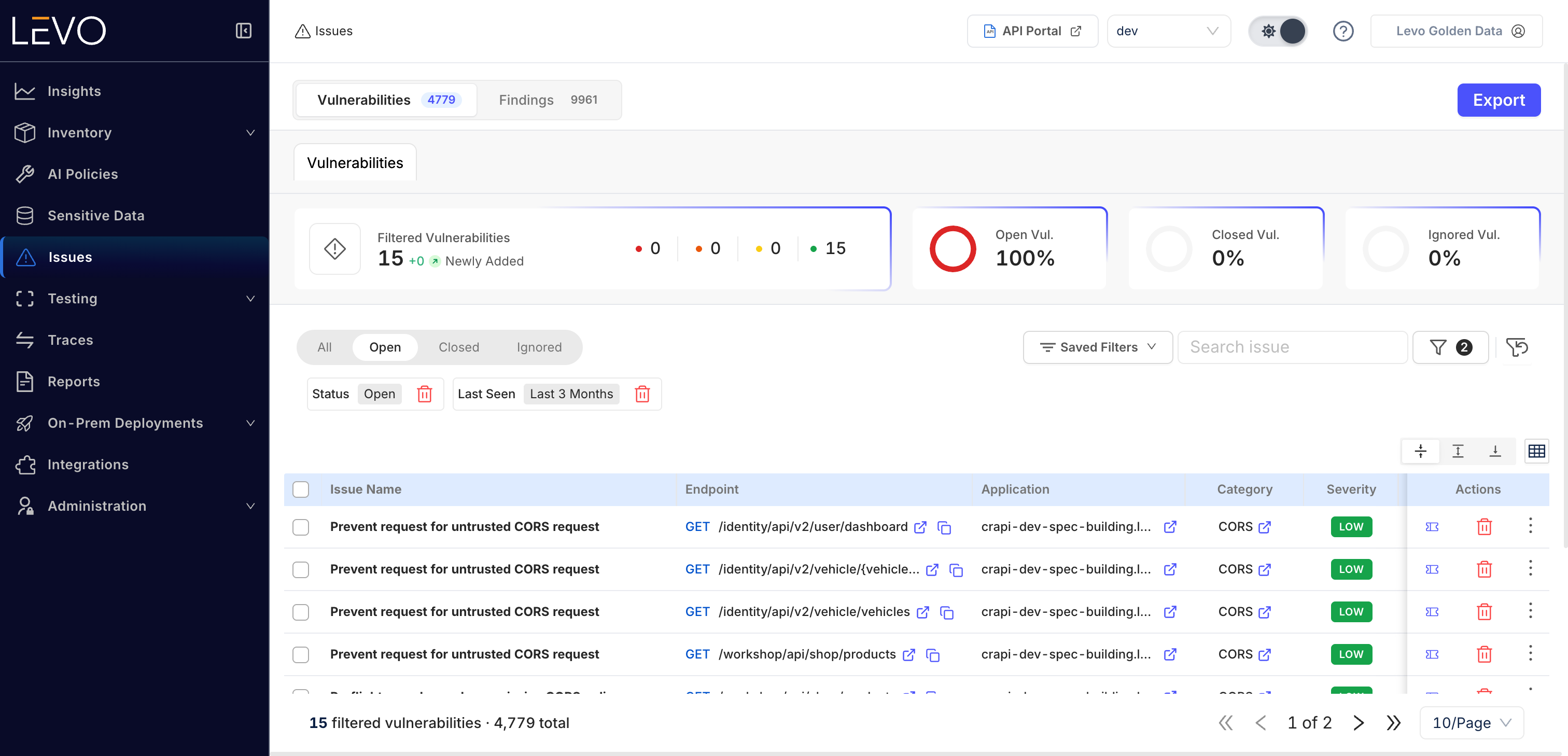
- Navigate to the specific Vulnerability, click on the
Create Ticketicon, and chooseLinear.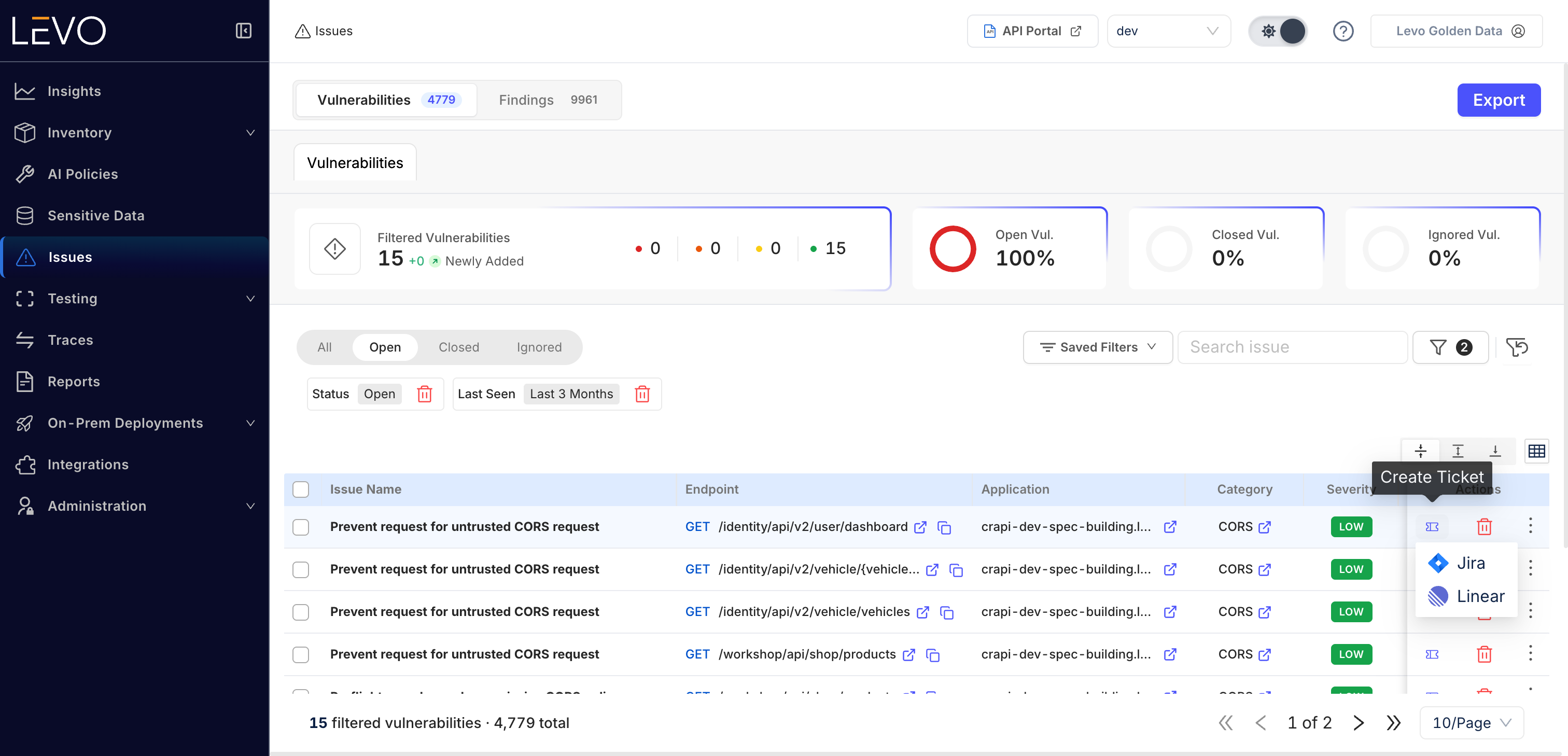
- Choose the integration, then the
Project.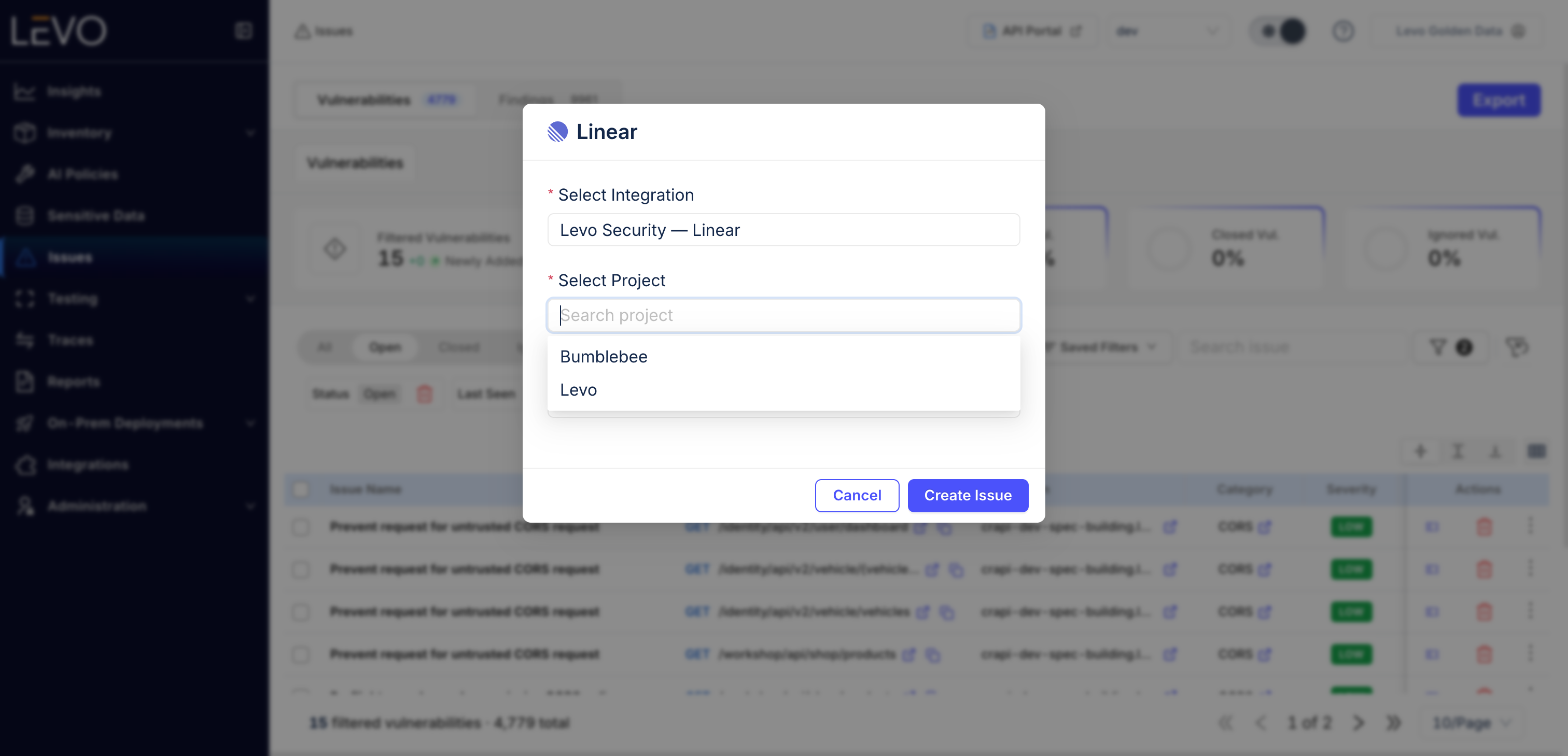
- Choose the
Issue Type, then complete the dialog to create the issue.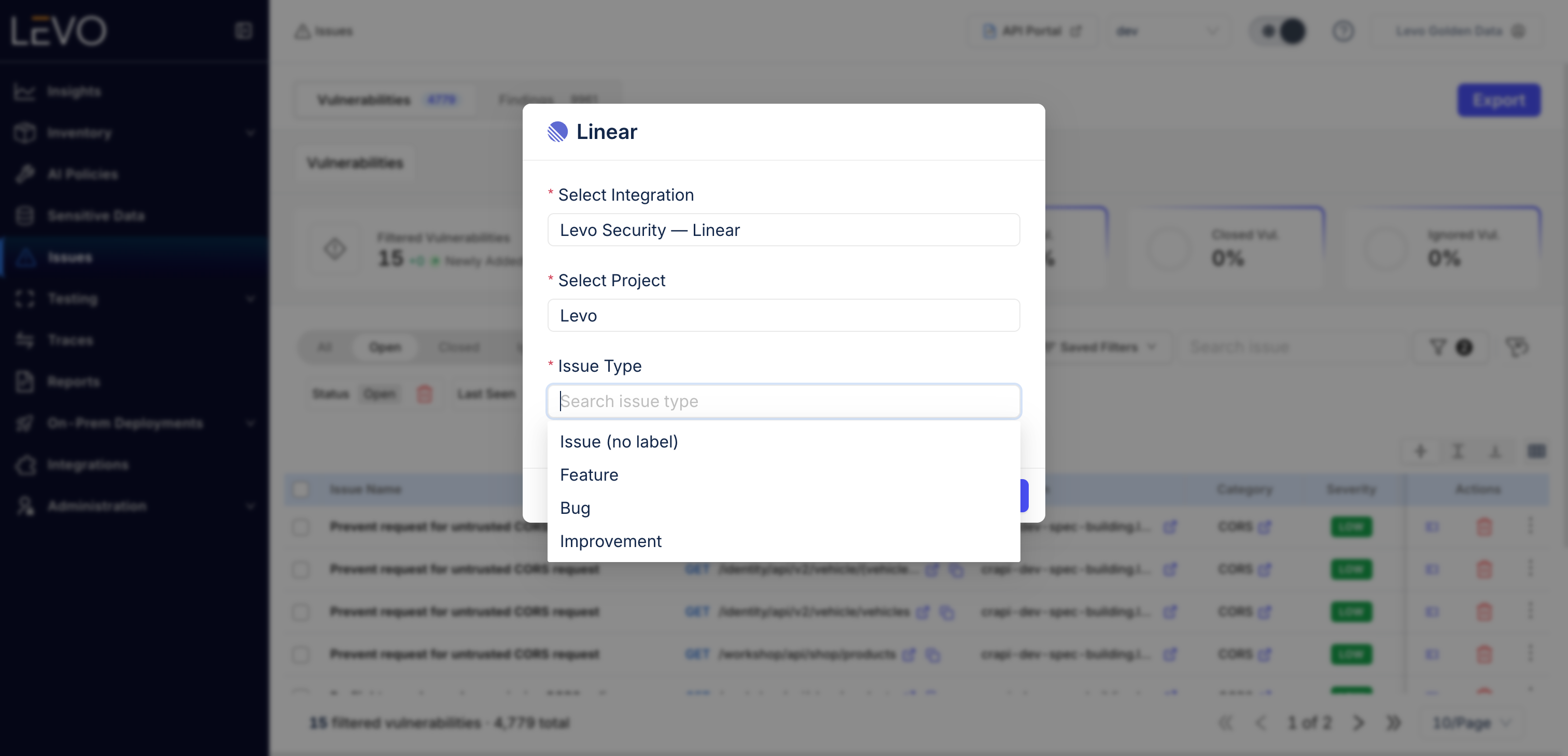
- Optionally verify if the issue was successfully created in Linear. The confirmation message shows the new issue's identifier (for example
LEV-42) as a link — click it to open the issue in a new browser tab.
Linear labels are defined at the workspace level rather than per team, so the Issue Type list is the same whichever team you select.
Once an issue exists for a Vulnerability, the ticket icon on that row turns into a Linear icon and opens the existing issue instead of creating another one.