Roles & Permissions
Levo uses Role-Based Access Control (RBAC) to determine what each member of your organization can see and do. Instead of granting access to people one action at a time, you group related permissions into a role and then assign that role to your team members.
A user's access is the union of all the roles they hold — roles are additive, so a member keeps every permission granted by every role assigned to them. The most permissive grant always wins.
Where to find it
Roles and users are managed from the Access Management page, under the Administration section of the left-hand navigation:
Administration → Access Management
Access Management covers both the people in your organization and the machine identities that act on its behalf. Its sections are grouped in the panel on the left of the page:
| Group | Section | What it does |
|---|---|---|
| People | Users | Invite members, and assign or remove their roles. |
| People | Roles | View, create, edit, clone, and delete roles. |
| People | Single Sign-On | Configure SSO (when your organization uses an SSO provider). |
| Machines | Service Accounts | Machine identities for Satellites, runners, and integrations. |
| Machines | API Tokens | Every API token in the organization, with its service account. |
This page covers the People side. You only see the sections your role grants you, so your list may be shorter than the one above.
If you don't see the Roles section, RBAC may not be enabled for your organization yet. Contact your Levo administrator or support@levo.ai to enable it.
Two kinds of roles
Every role in Levo is either managed or custom.
Managed roles
Managed roles are built and maintained by Levo. They are marked with a Managed tag and appear in every organization.
- They cannot be edited or deleted.
- Their permissions update automatically as new Levo features ship, so members holding a managed role always get sensible access to new capabilities without any action from you.
- To customize a managed role, clone it — this creates an editable custom copy.
Levo ships with the following managed roles:
| Role | Description | Access summary |
|---|---|---|
| Owner | Full control of the organization. | Every permission, including deletes and IAM management. |
| Admin | Read, write, and execute across the platform. No deletes. | Everything except delete actions. |
| Viewer | Read-only access to inventory, findings, and test results. | Read-only across the platform. |
| Security Engineer | Default role assigned when RBAC is first enabled. | Read-only (to be tuned by your admins). |
When RBAC is first enabled for your organization, the organization owner is granted the Owner role, and all other existing members receive a default read-only role so that no one is unexpectedly locked out. Your administrators can then refine access from there.
Custom roles
Custom roles are the ones your organization creates. They are marked with a Custom tag and are visible only within your organization.
- They can be edited, cloned, and deleted by members with the right IAM permissions.
- You build them by picking exactly the permissions you want to grant — optionally starting from a template.
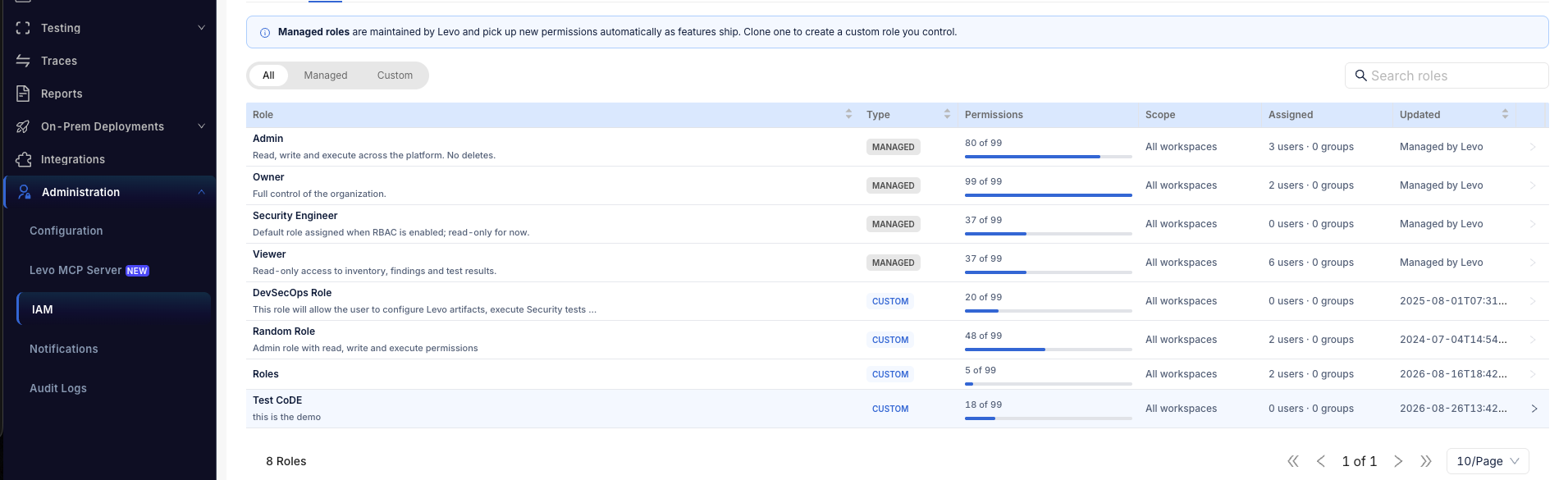
The Roles section. Each role shows its Type (Managed / Custom), the number of Permissions granted, its Scope, how many users are Assigned, and when it was last Updated. Filter chips let you show All, Managed, or Custom roles, and the Create Role button is at the top-right.
Next steps
- Creating & Editing Roles — build a custom role, clone a managed role, and edit or delete roles.
- Assigning Roles to Users — grant roles to your team members.