Configure Component Health Notifications
When you finish this page, a named audience will be notified on your chosen destinations whenever a given family of Levo component stays down past a delay you set.
A component reaching Down does not notify anyone on its own. You need at least one enabled notification rule that matches it.
What you will configure
| Setting | Decides |
|---|---|
| Event group | Which component family the rule covers |
| Environments | Which environments it applies to; empty means all |
| Alert after | How long after the component is marked Down to send the first message |
| Then remind me | Whether and how often to repeat while it is still down |
| Destinations | Where the message is delivered |
| Enabled | Whether the rule contributes anything at all |
Prerequisites
- A role with permission to view and edit Administration → Notifications.
- At least one component registered under On-Prem Deployments. Rules can be created before components exist, but you will not be able to confirm the environment names match.
- For Slack or Microsoft Teams delivery, either a connected account or an incoming webhook URL for the target channel. Email needs nothing set up in advance.
How the page is organised
Rules live under Administration → Notifications, in the Component Health category. The page is organised by event, not by rule. There is one event group per component family, and each group can hold several notifications:
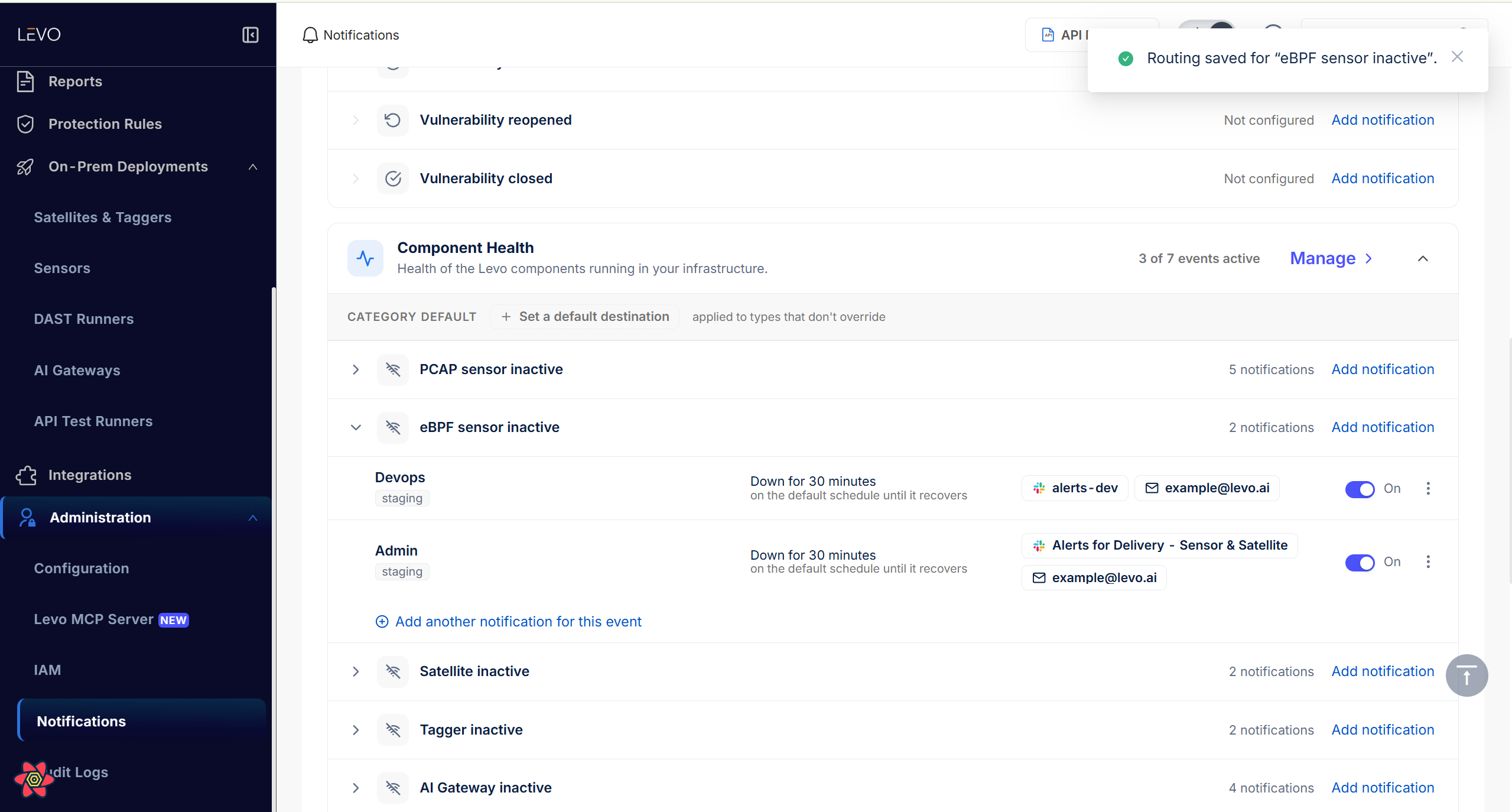
The category header shows how many of its events are active (3 of 7 events active above), and each event group shows either a notification count or Not configured if nothing has been set up for it yet.
| Event group | Covers |
|---|---|
| PCAP sensor inactive | levo-pcap-sensor instances |
| eBPF sensor inactive | levo-ebpf-sensor instances |
| Satellite inactive | Satellites — the in-VPC relay that forwards telemetry |
| Tagger inactive | Taggers, which enrich traffic before it reaches the catalog |
| AI Gateway inactive | The proxy that inspects AI / LLM traffic |
| DAST Runner inactive | The dynamic application security testing service |
| Test Runner inactive | The API security test execution service |
The group header tells you how many notifications it currently holds.
Set a category default destination
Above the event groups, the Category default row lets you set a destination once and have it apply to every event type that does not override it. If most of your component families should notify the same channel, set it here rather than repeating it in seven groups, then add specific notifications only where the timing or audience genuinely differs.
Create a notification
Go to Administration → Notifications and open the Component Health category.
Find the event group for the component family you care about, and expand it.
Click Add notification on the group header, or Add another notification for this event at the foot of the group. Both create a new rule under that same event.
Name it something that says who it is for — "Prod on-call" rather than "Rule 2". The name never appears in the alert itself; it exists so the next person can tell your rules apart.
Pick the environments. Leave the picker empty — it reads All environments — to cover every environment in the workspace, including ones created later. Choosing specific environments means exactly those, matched by name against the component's own environment.
Set the schedule. Alert after (component has been down for) is the wait before the first message, in minutes, hours, or days. Then remind me is the repeat interval — leave it on Don't repeat for a single alert.
Add destinations — a Slack channel, one or more email addresses, Microsoft Teams, Splunk, or a custom webhook. One notification can carry several.
Toggle it On. A rule that is Off contributes nothing at all.
"Alert after" and "Then remind me"
These two fields do different jobs, and pairing them deliberately is what separates a useful alert from a noisy one.
Alert after (component has been down for) is the wait before the first message. It is counted from the moment the component was marked Down — so a 30-minute value fires 4 h 30 m after the component was last seen, not 30 minutes after.
- The minimum is 30 minutes. Anything lower is raised to 30, and that floor is applied when the rule is evaluated as well as when it is saved — so a value stored before the floor existed is treated as 30 minutes today, not as its original value.
- Leave it empty and the rule inherits the default timing for that component type instead of going silent. The hint under the field tells you what that currently resolves to.
Then remind me is how often to repeat while the component is still down. You pick from a fixed set rather than typing an interval: Don't repeat, Every hour, Every 4 hours, Every 12 hours, Every day, or Every week.
- Don't repeat means one message and nothing further.
- Any other choice repeats on that interval until one of three things happens: the component recovers, someone snoozes it, or someone marks it ephemeral. The hint under the field puts it as stops on recovery, or as soon as someone silences the component.
- Leave it unset and the rule inherits the default for that component type.
A short Alert after with Don't repeat tells you quickly and once. A longer Alert after with Every day is the right shape for something you want chased rather than announced.
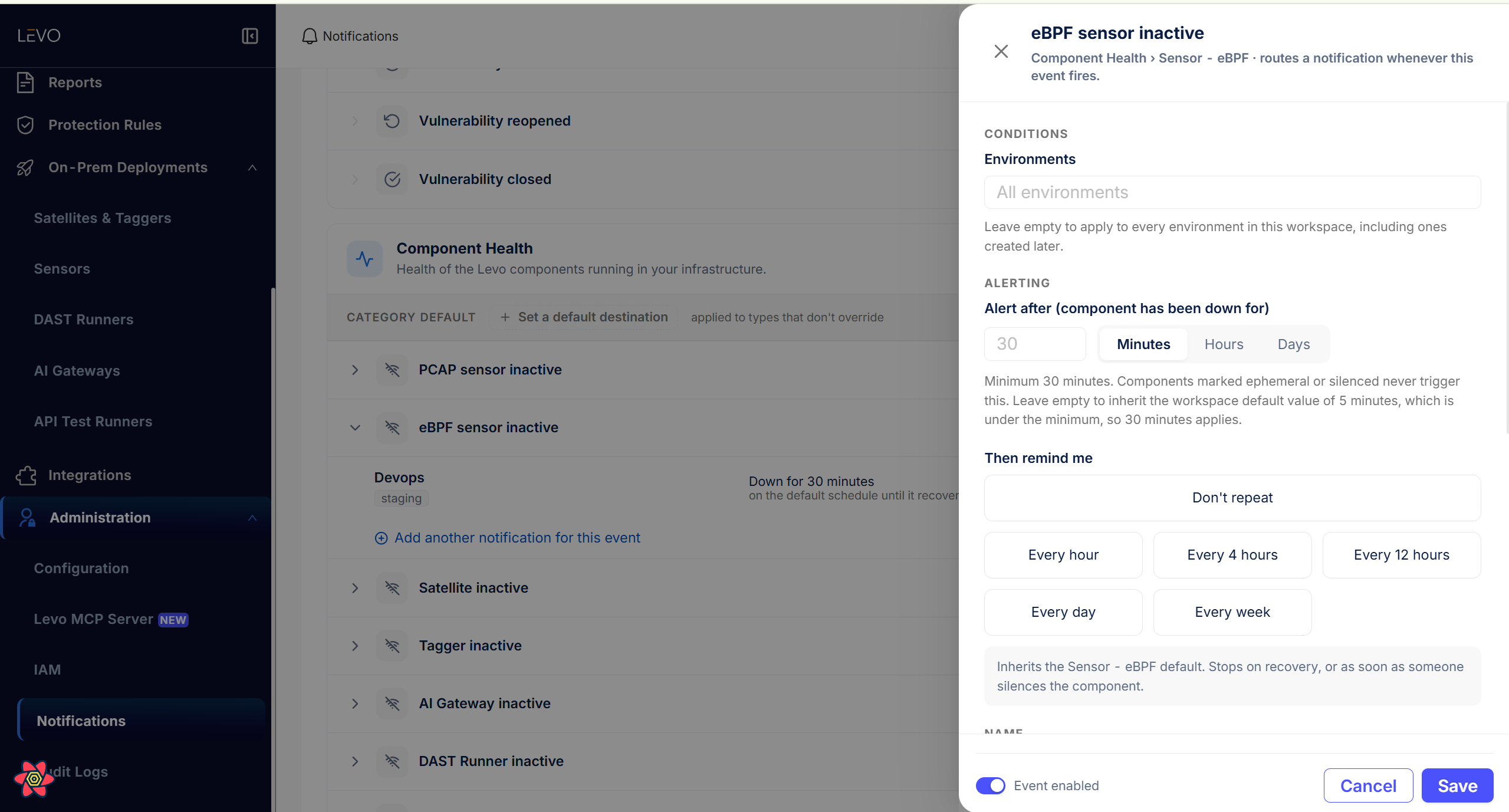
The drawer states the rules it applies as you edit. Under Alert after it tells you the 30-minute minimum, that components marked ephemeral or silenced never trigger the rule, and what an empty field will inherit — including the case where the inherited value is itself below the minimum, in which case 30 minutes applies anyway. The Event enabled toggle sits in the footer next to Save.
The notification's schedule column will read Down for the default period rather than a time you chose. Two things follow from that:
- It still sends alerts, as long as the notification is toggled On. It uses the default delay for that component type, and never less than 30 minutes.
- It no longer alerts independently. Every notification on the same event that also left Alert after empty is treated as one alert, delivered to all of their destinations together — not as separate alerts at separate times.
So enter a value in Alert after whenever you want a specific delay, or want two alerts at different times for the same event.
A notification toggled Off never fires at all, whatever its delay says.
Several notifications for one event
This is what Add another notification for this event is for. Reach for it whenever two audiences care about the same components on different terms:
- Different audiences — on-call goes to a Slack channel, the team lead gets an email, and they need not share a schedule.
- Different urgency — one notification at 30 minutes to page whoever is on, another at a day to escalate if it is still down.
- Different environments — production to the on-call channel, staging to the team channel, from two notifications under the same event.
The screenshot at the top of this page shows exactly this: eBPF sensor inactive holds two notifications, Devops and Admin, each with its own set of destinations.
When several notifications apply to one component:
- Distinct schedules become distinct alerts, each with its own repeat clock. "Page on-call at 30 minutes" and "tell the leads after a day" both fire at their own times.
- Two notifications asking for the same timing are one alert, however many people asked to hear about it. You get one message delivered to every destination, not one message per notification. The two rules in that screenshot are both set to Down for 30 minutes in
staging, so they behave as a single alert fanned out to all four destinations.
Anatomy of a rule
Everything that decides whether a rule fires is on its single row. Reading the Devops row in the screenshot at the top of this page from left to right: the notification is named Devops, scoped to the staging environment, fires once the component has been down for 30 minutes, repeats on the default schedule until it recovers, delivers to both a Slack channel and an email address, and is switched On.
| Part | What it does |
|---|---|
| Event type | Which component family the rule is about. |
| Threshold | How long after the component is marked Down to alert. Minutes, hours, or days. Left empty, the rule inherits the component-type timing rather than going silent — that is what "Down for the default period" means. |
| Environments | A list. Empty means every environment, including ones created later. A non-empty list means exactly those, matched by name. |
| Repeat interval | How long before an already-firing alert is repeated. Unset falls back to the threshold itself. |
| Destinations | Slack, email, Microsoft Teams, Splunk, custom webhooks. One rule can carry several. |
| Enabled | The toggle. A disabled rule contributes nothing. |
Environments are matched exactly against the component's own environment name. A notification scoped to staging will never fire for a component registered in any other environment, no matter how correct everything else looks — and the page gives you no hint, because the rule looks perfectly configured. If a whole component family has gone silent, compare its components' environment against these chips before anything else.
Per-type thresholds
Alongside the rules, Levo keeps a default alert threshold per component type, which is what a rule with no timing of its own inherits. Two things to know about it:
- The 30-minute minimum applies to every type, and is applied when the value is read as well as when it is written.
- If no rule sets a timing, the component type's threshold is used — and if that is unset too, the built-in default for that component family applies.
Destinations
Component health notifications reuse the same destinations as the rest of Levo's notifications. A single notification can carry several of these at once:
- Email — one or more addresses, typed straight into the notification. Nothing to set up beforehand.
- Slack — a saved Slack channel, or an incoming webhook URL. See Slack if you have not connected one yet.
- Microsoft Teams — a saved Teams channel, or an incoming webhook URL for the channel you want.
- Splunk — see Splunk.
- Custom webhooks — any HTTP endpoint. See Custom webhooks.
One alert produces one message per destination per tenant, per direction — so a sweep that finds a whole fleet down sends one rolled-up message listing every component, its environment, and when it was last seen, rather than one message per component. Email lists every affected component rather than truncating the list.
Troubleshooting
| Symptom | Likely cause | Fix |
|---|---|---|
| A whole component family never notifies, though the rule looks correct | The rule's environment chips do not match the components' environment name, which is matched exactly | Compare the environment on the component's row against the rule's chips; clear the picker to cover all environments |
| No notification for a component that was clearly offline | It recovered before 4 hours + your delay elapsed, so it never became eligible | Check Last Active on the row; only components that reach Down can notify |
| One component never notifies while others in the same family do | That row is snoozed, marked ephemeral, or decommissioned — all checked before any rule | Check the row's Alerting column and clear the control you no longer want |
| The rule's schedule column reads Down for the default period | The rule has no timing of its own and is inheriting the component-type default | Set Alert after explicitly if you need a specific delay or a second alert at a different time |
| A delay under 30 minutes does not behave as entered | The 30-minute floor is applied when the rule is evaluated, not only when saved | Enter 30 minutes or more so the configured and effective values agree |
| Nothing arrives although the rule fired | The destination is no longer valid — a revoked Slack webhook or a changed email alias | Re-add the destination and save the notification again |
| A change appears not to take effect immediately | Levo re-checks components every 5 minutes | Allow one cycle before concluding the rule is wrong |
Checklist
- The event group matches the component family you care about.
- Environments either cover all environments, or exactly match the components' environment names.
- Alert after is set deliberately, and is 30 minutes or more.
- Then remind me is set to repeat only if you want the alert chased.
- At least one destination is attached, and it is still valid.
- The notification toggle reads On.
- If several notifications cover one event, their delays differ where you intend separate alerts.
Next steps
- Silence or retire a component you already know about, without touching a rule that covers your whole fleet.