Assigning Roles to Users
A role only takes effect once it's assigned to a member. A user can hold multiple roles, and their effective access is the combined (additive) set of permissions from all of them.
There are two ways to assign roles — start from a user and add roles, or start from a role and add users. Both produce the same result.
Assigning or removing roles requires the Edit user permission (update:users) along with
IAM read access. The built-in Owner and Admin roles include this.
Assign roles from the Users section
- Go to Administration → Access Management and open the Users section.
- Find the member in the table. Their current roles appear as tags in the Roles column.
- Click the + button in the Roles column for that user.
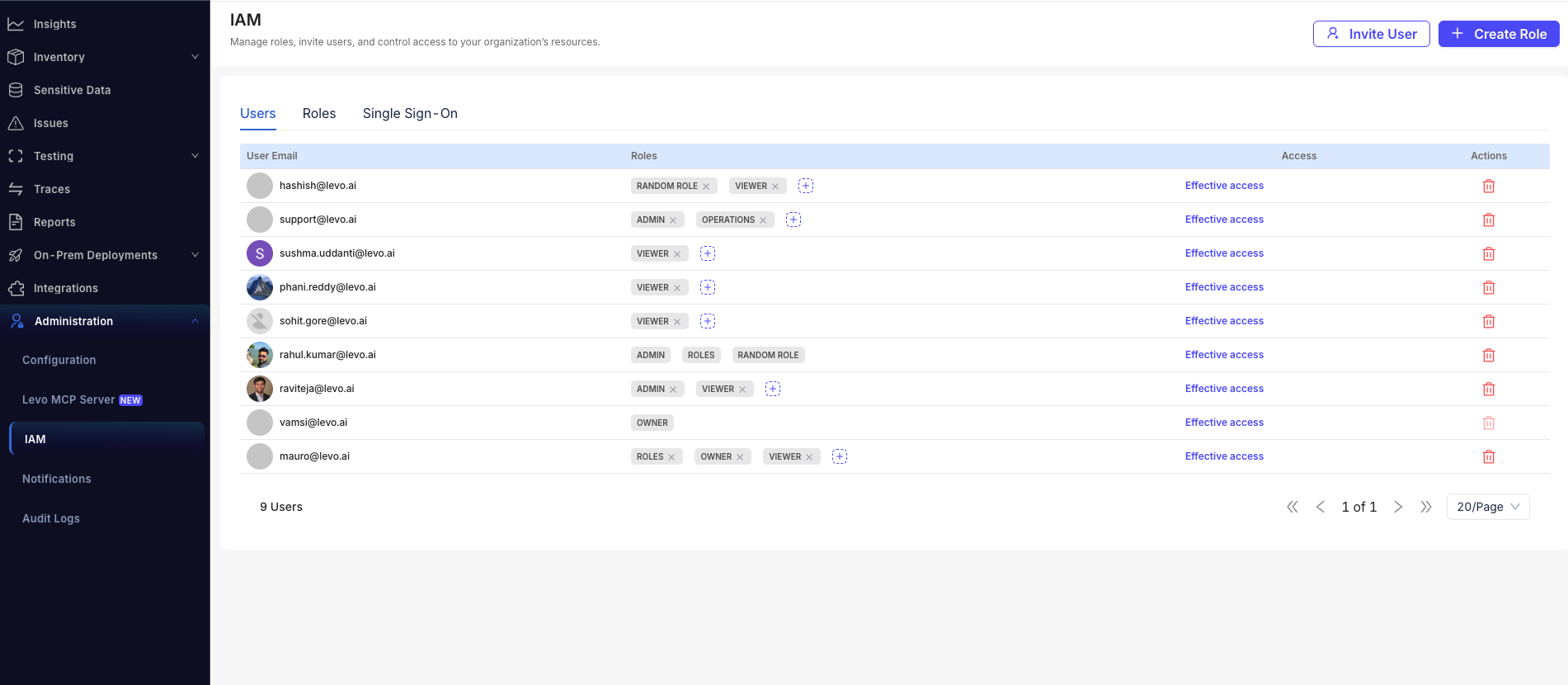
The Users section. Each row shows the member's email, their assigned roles as tags (with a + button to add one and an × on each tag to remove it), and an Effective access link.
- In the Assign Roles dialog, pick a role from the dropdown and click Add Role.
To remove a role, click the × on its tag in the Roles column.
Assign users from a role
- In the Roles section, open the role you want to assign.
- Switch to the Users tab within the role's detail page.
- Click Add user, choose a member, and confirm.
(The role's Users tab — listing everyone who holds the role, with the Add user button — is part of the role detail page shown in Creating & Editing Roles.)
Review a member's effective access
Because roles stack, it's useful to see the full picture of what a member can actually do.
- In the Users section, click Effective access next to a member.
- The drawer shows:
- Roles in effect — every role the user holds and how it was granted.
- Effective access by resource — the combined permissions, grouped by resource area (Applications, Endpoints, Findings, and so on) and broken down by action (View, Create, Edit, Delete, Execute).
- A count of any sensitive permissions currently in effect.
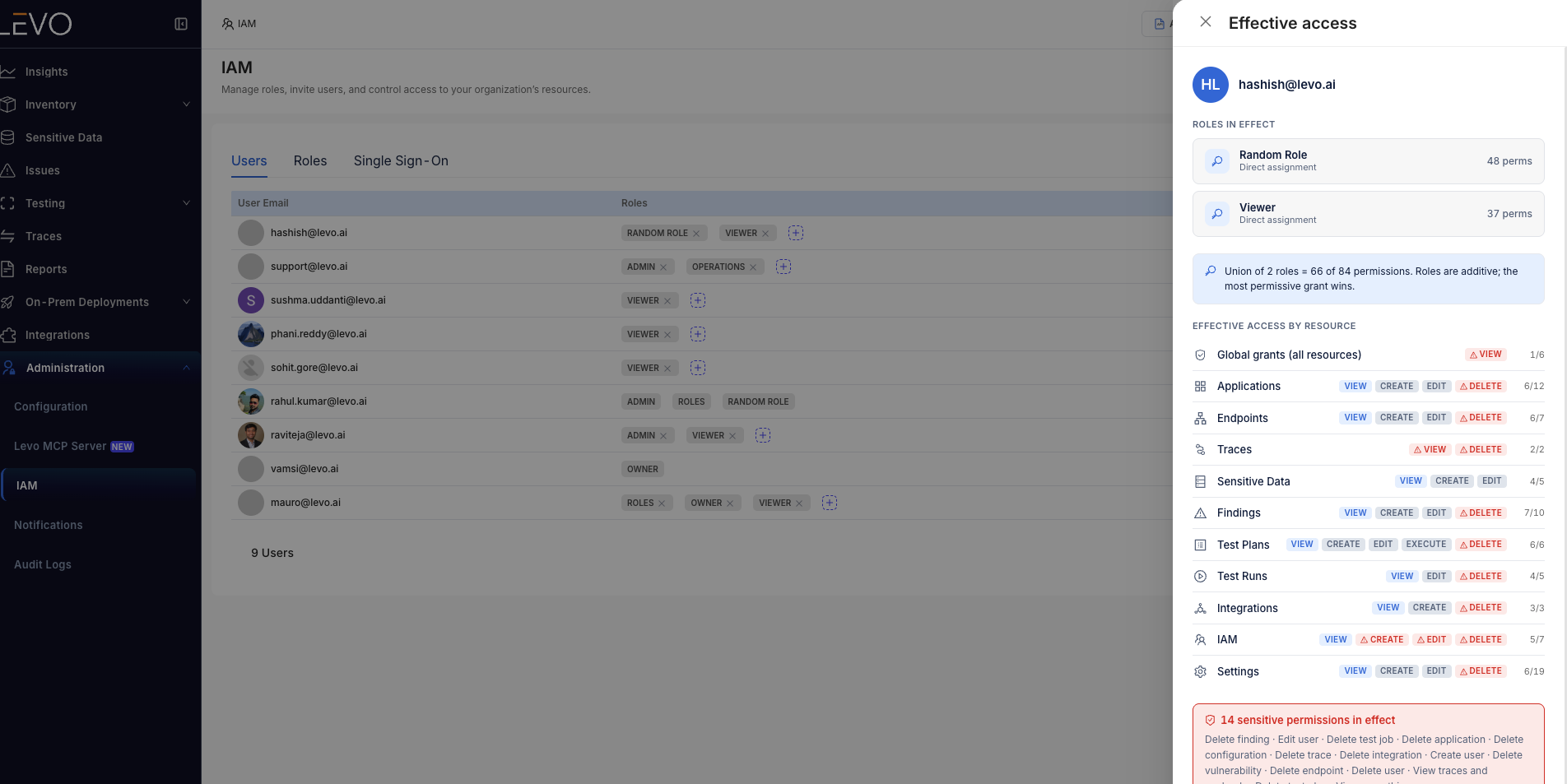
The Effective access drawer showing a user's combined permissions across all their roles.
Things to know
- The organization owner always retains full access — you can't assign to or remove roles from the owner.
- Roles are additive. If two roles grant overlapping permissions, the most permissive grant applies.
- Changes apply on the member's next request — no sign-out required.