Creating & Editing Roles
This page walks through creating a custom role from scratch, cloning an existing role, editing a role's permissions, and deleting a role you no longer need.
Managing roles requires IAM permissions:
- Create or clone a role → Create role (
create:iamroles) - Edit a role → Edit role (
update:iamroles) - Delete a role → Delete role (
delete:iamroles)
The built-in Owner and Admin roles include these by default.
Create a custom role
-
Go to Administration → Access Management and open the Roles section.
-
Click Create Role in the top-right corner.
-
Give the role a Role name (required) — for example,
AppSec Analyst— and an optional Description that explains what the role is for. -
(Optional) Start from a template. To save time, pick a starting point under Start from a template, then adjust from there:
Template Starting permissions Blank Nothing selected — build entirely from scratch. Viewer Read-only access to inventory, findings, and test results. AppSec Analyst Triage findings and run tests. Platform Engineer Operate satellites, sensors, and integrations. -
Select permissions. Use the permission picker to grant exactly what this role needs:
- The left rail lists each resource area (Applications, Endpoints, Findings, and so on)
with a count of how many of its permissions are currently granted (e.g.
Applications 3/5). - Use the search box to quickly find a permission by name.
- Toggle individual permissions with their checkboxes, or use Grant all / Clear all for a whole group.
- Permissions marked Sensitive are called out with a red tag; the toolbar shows a running count of how many sensitive permissions you've granted.
- The left rail lists each resource area (Applications, Endpoints, Findings, and so on)
with a count of how many of its permissions are currently granted (e.g.
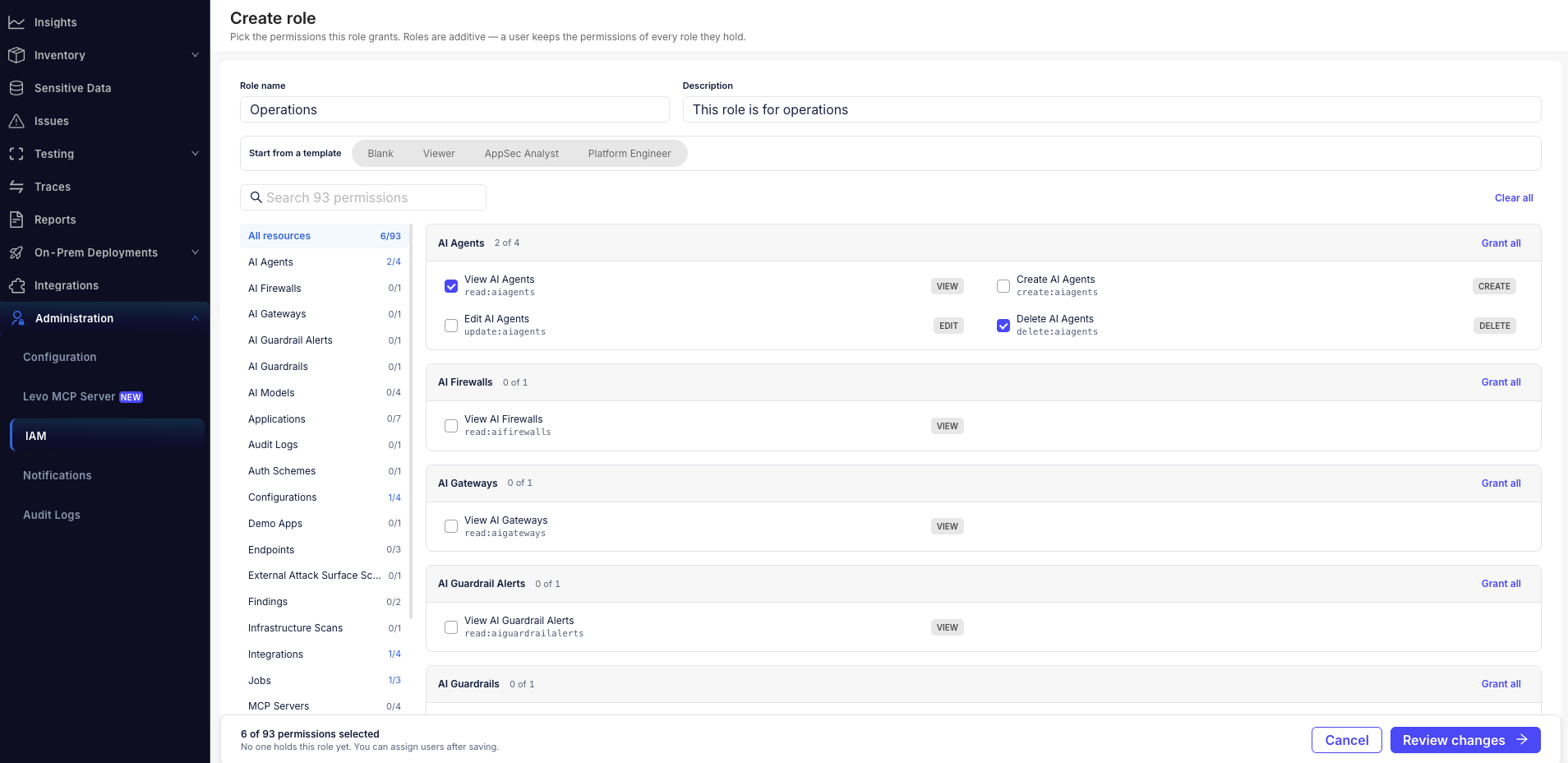
The role editor: the Role name and Description fields at the top, the Start from a template options, and the permission picker below — resource areas in the left rail, the searchable permission list in the center, and the "X of N permissions selected" summary at the bottom. This is the same editor used when creating and editing a role.
-
When you're done, click Review changes →.
-
In the Review changes dialog, confirm the summary of what will be granted and revoked. Levo warns you here about anything worth a second look — for example, sensitive permissions being granted, or how many people the change will affect. Click Create role to save.
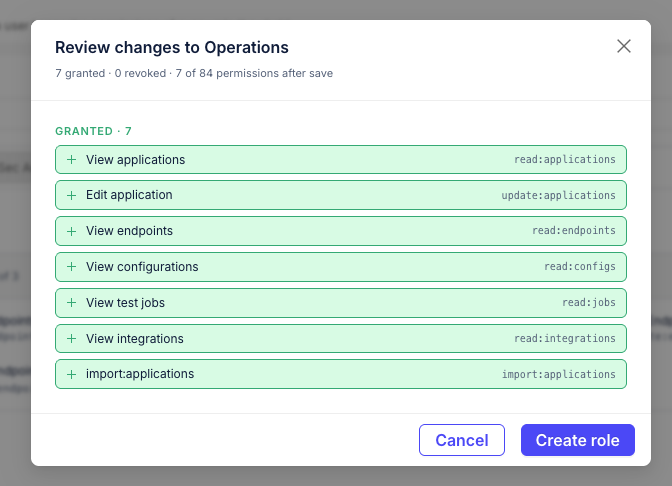
The Review changes dialog summarizing granted vs. revoked permissions before saving.
The new role now appears in the Roles section with a Custom tag. You can assign it to users at any time.
Clone a role
Cloning is the way to base a new role on an existing one — and it's the only way to customize a managed role (Owner, Admin, Viewer, Security Engineer), since managed roles can't be edited directly.
- In the Roles section, open the role you want to copy.
- Click Clone.
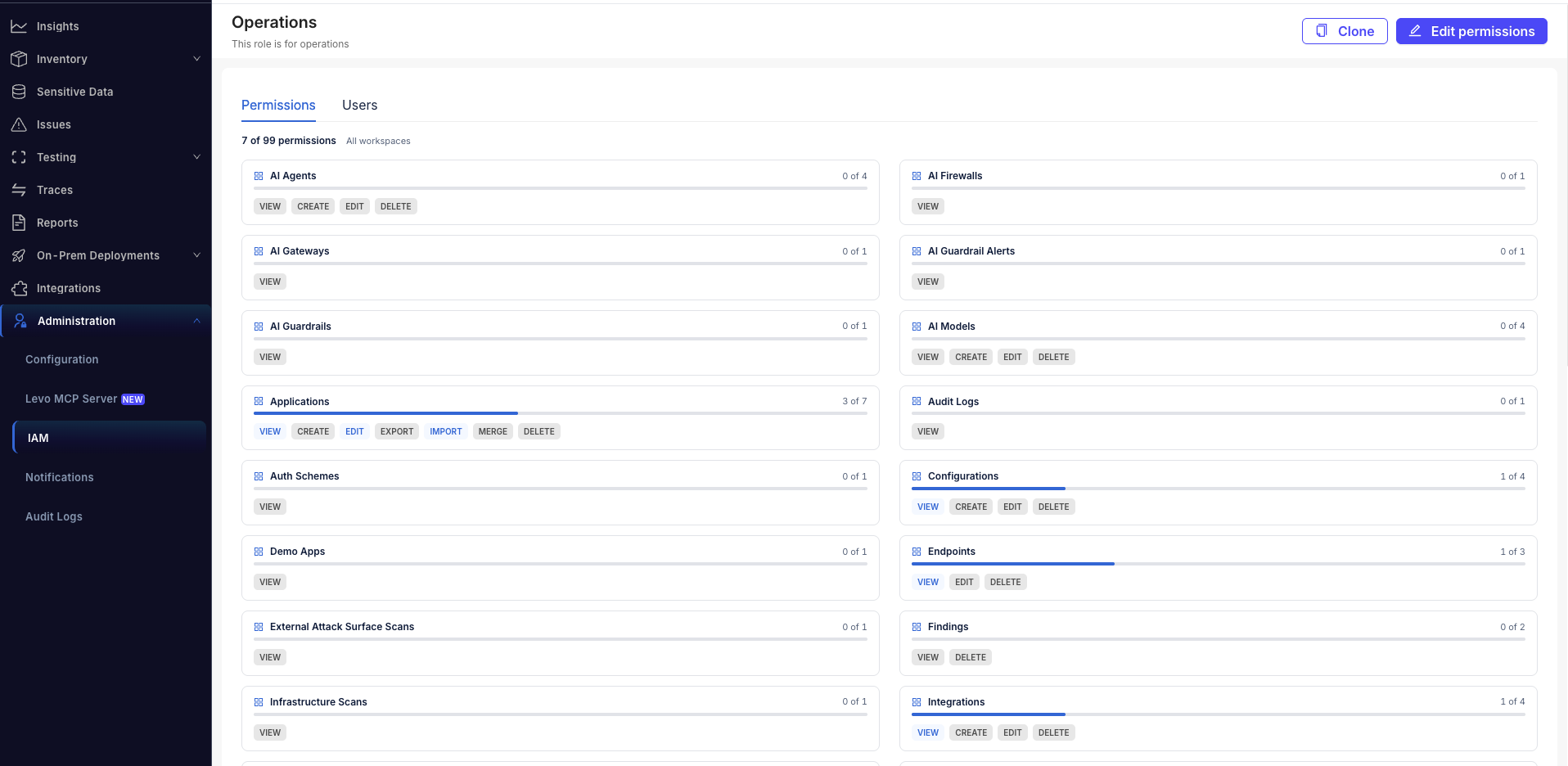
A role's detail page. Edit permissions and Clone are at the top-right, with the Permissions and Users tabs below. Custom roles also expose a Delete action; managed roles show only Clone.
- Levo creates an editable custom copy — named
Copy of <original role name>— that carries over the original's description and all of its permissions, and opens it in the editor so you can adjust it. - Rename it, tweak the permissions, and click Review changes → then Save role.
Edit an existing role
You can edit any custom role. (Managed roles can't be edited — clone one first.)
- In the Roles section, open the custom role you want to change.
- Click Edit permissions (shown on the role detail page above).
- Update the name, description, or permissions using the same picker as role creation.
- Click Review changes →, confirm the summary, and click Save role.
Permission changes apply on each affected member's next request — there's no need for them to sign out and back in. The review dialog tells you how many people currently hold the role so you understand the impact before saving.
If you remove your own IAM permissions while editing a role you hold, Levo warns you in the review dialog — revoking IAM access there may lock you out of this screen. Make sure at least one other member retains an Owner or IAM-managing role.
Delete a role
You can delete custom roles that are no longer needed. Managed roles cannot be deleted.
- In the Roles section, open the custom role.
- Click Delete (shown on the role detail page above) and confirm.
If any users are still assigned to the role, deletion is blocked. Unassign the role from all users first, then delete it. (See Assigning Roles to Users.)