SSO with Google Workspace
Configure SSO with Google Workspace
Follow these steps to configure the Google Workspace Integration for your Levo organization. This will allow you to use Google Workspace to login to the platform.
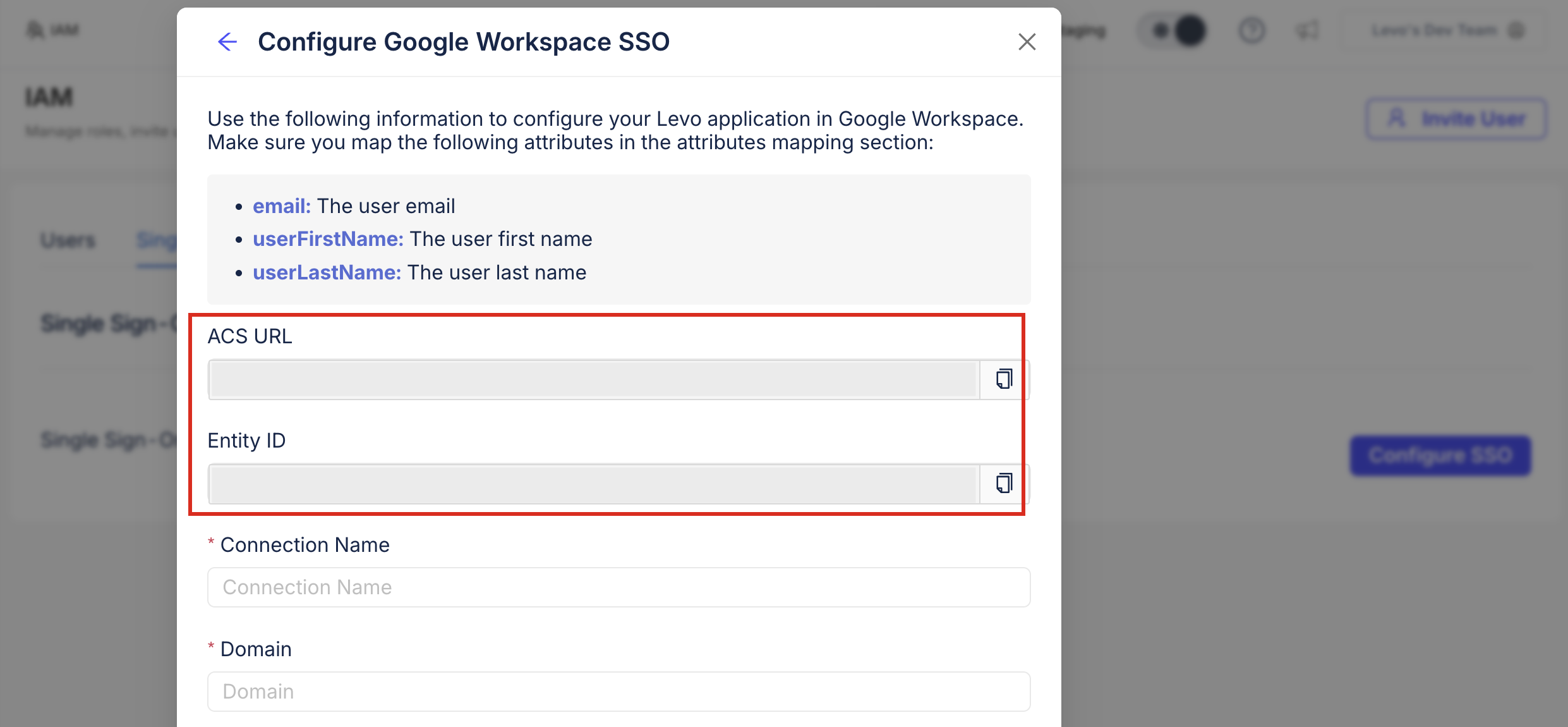
- Navigate to User Settings > Organizations in the Levo Dashboard. Select your organization and navigate to the SSO tab. Click on Configure SSO and then select Google Workspace.
- Copy the Assertion Consumer Service URL (ACS URL) and Entity ID. These will be used during the Google Workspace app creation.
- Navigate to the Google Admin console and sign in with your administrator account.
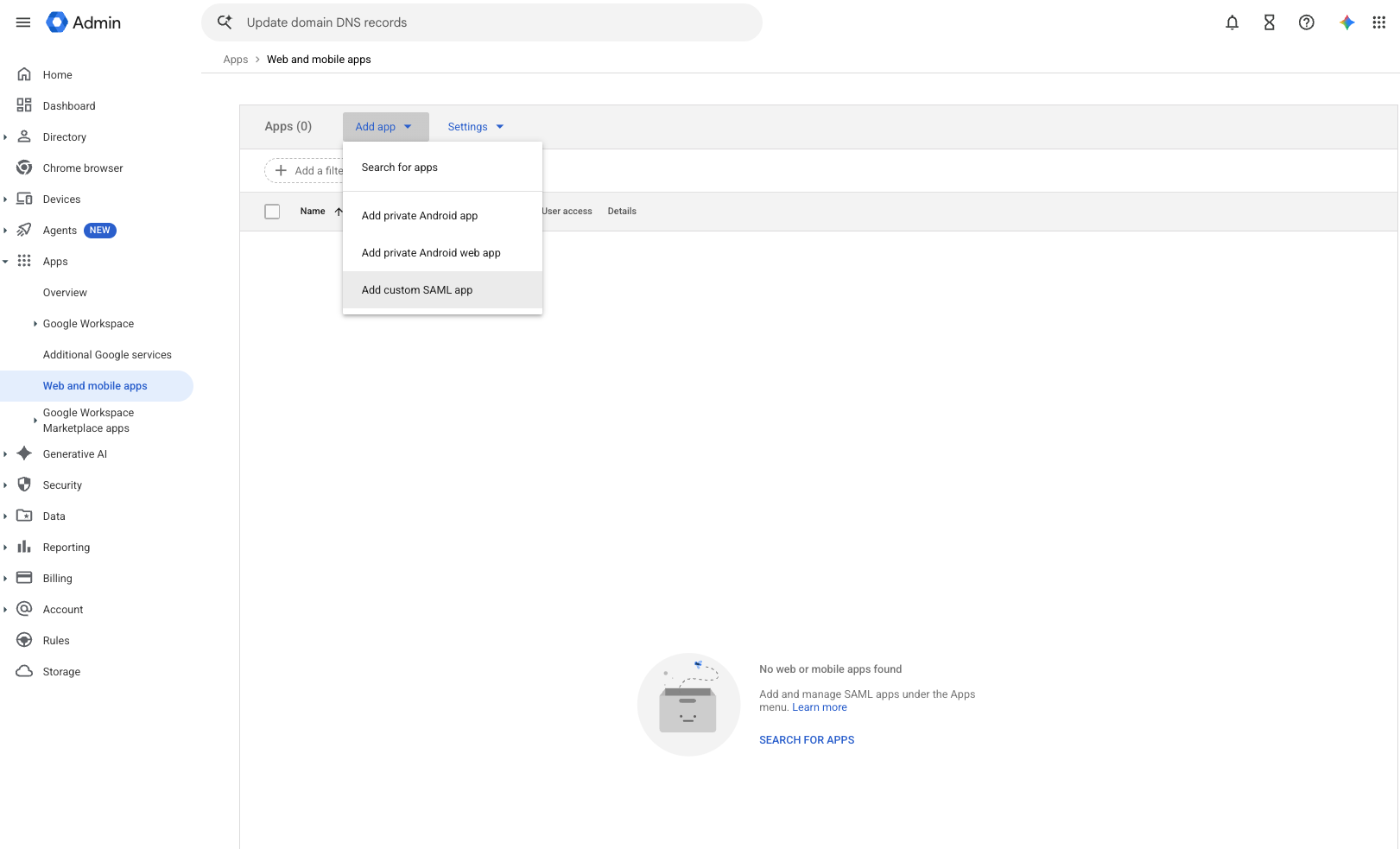
- Go to Apps > Web and mobile apps > Add app > Add custom SAML app.
- Enter Levo as the application name and, optionally, upload the Levo logo so you can easily identify it in your Admin console, then click Continue.
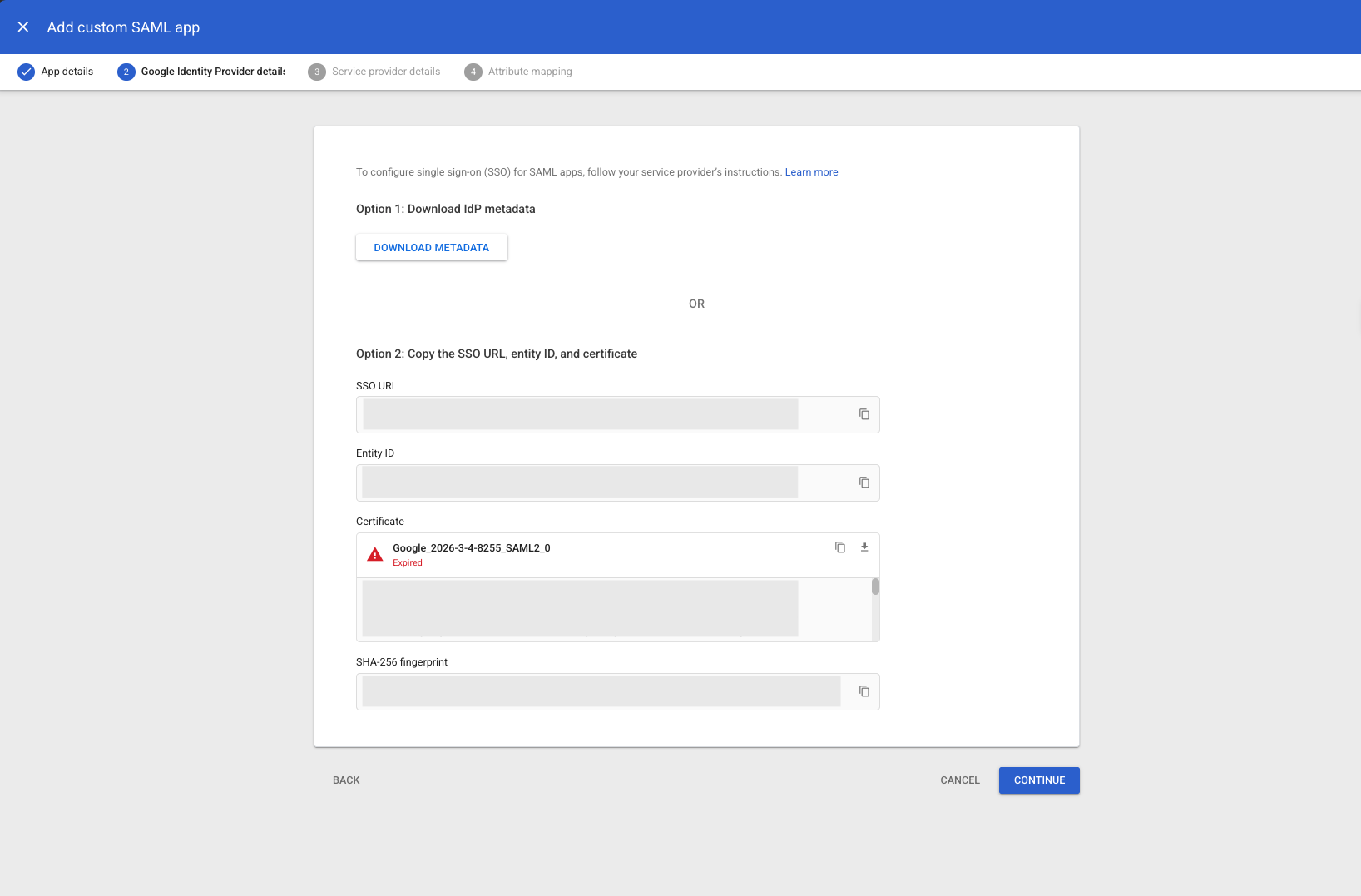
- On the Google Identity Provider details screen, copy the SSO URL, Entity ID, and Certificate (or download the metadata file). These will be used in the Levo configuration.
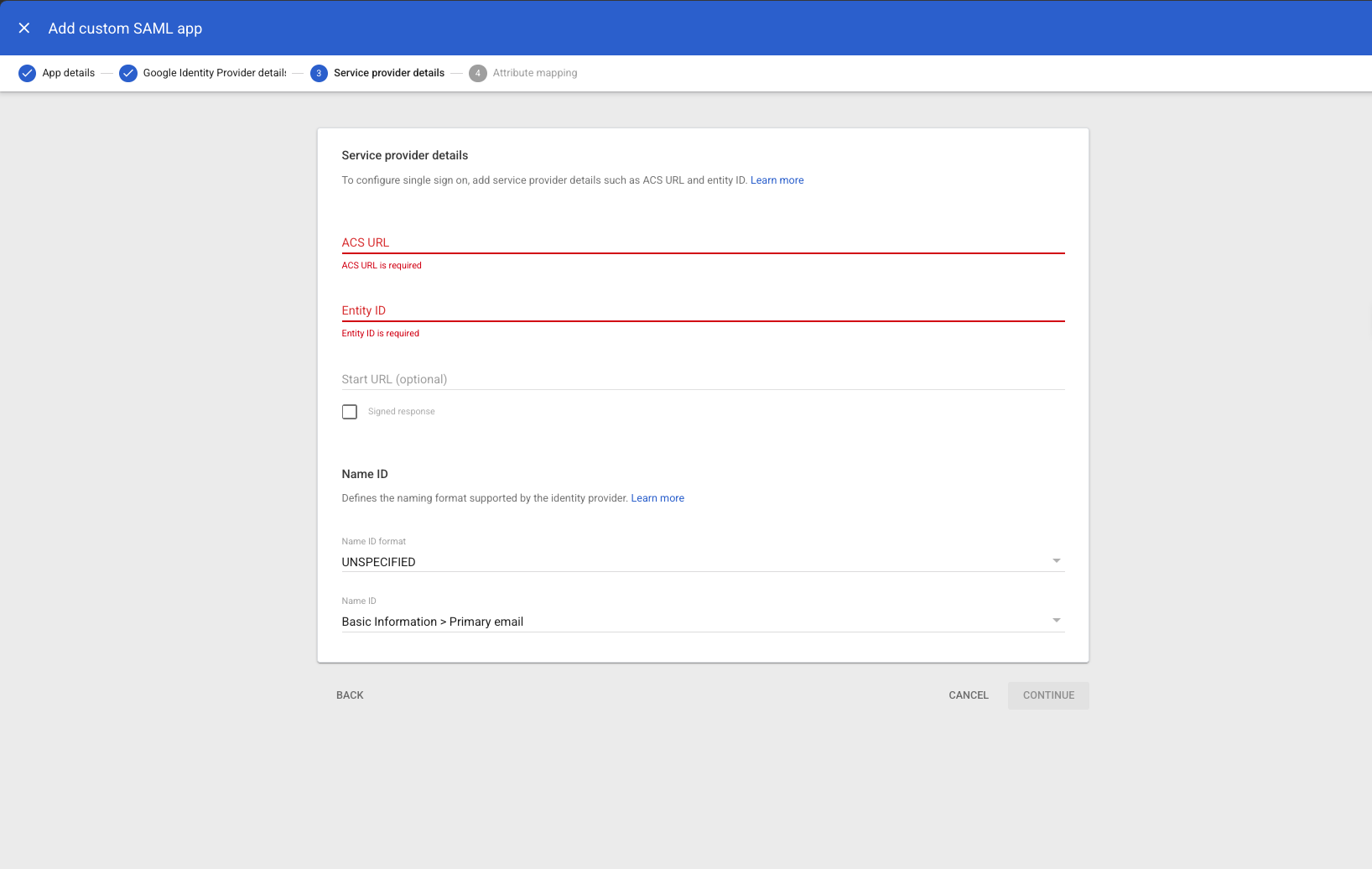
- Click Continue to the Service provider details screen and configure the following, using the values you copied from Levo in step 2:
- ACS URL: Paste the Assertion Consumer Service URL you copied from Levo.
- Entity ID: Paste the Entity ID you copied from Levo.
- Start URL:
https://app.levo.ai - Name ID format: Change this from the default
UNSPECIFIEDtoEMAIL. - Name ID:
Basic Information > Primary email - Click Continue.
- On the Attribute mapping screen, map the following Google Directory attributes to App attributes and click Finish:
Basic Information > Primary email→ emailBasic Information > First name→ userFirstNameBasic Information > Last name→ userLastName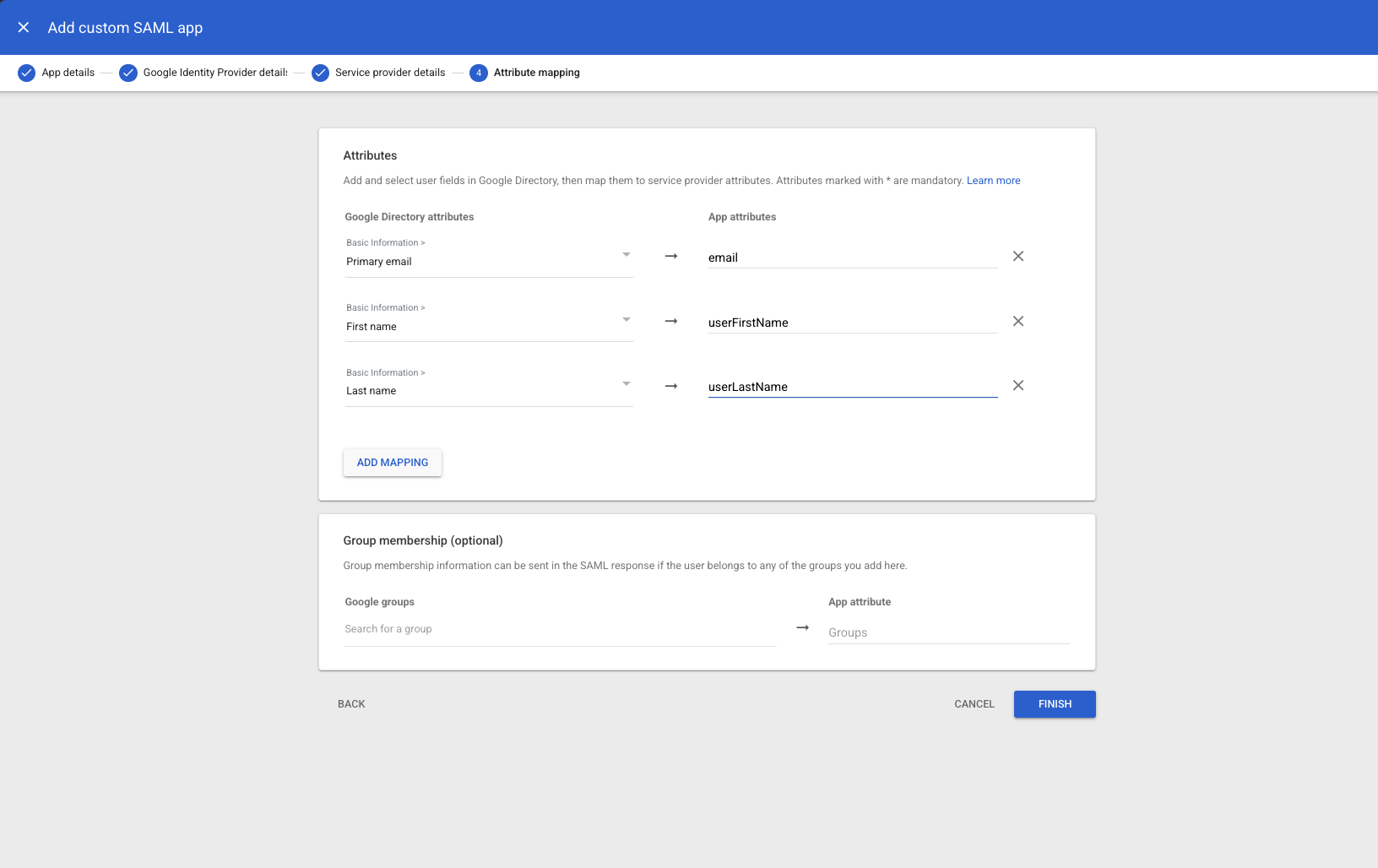
- Once the app is created, click User access (or select the app from the Web and mobile apps list) and turn the service ON for the relevant organizational units or groups.
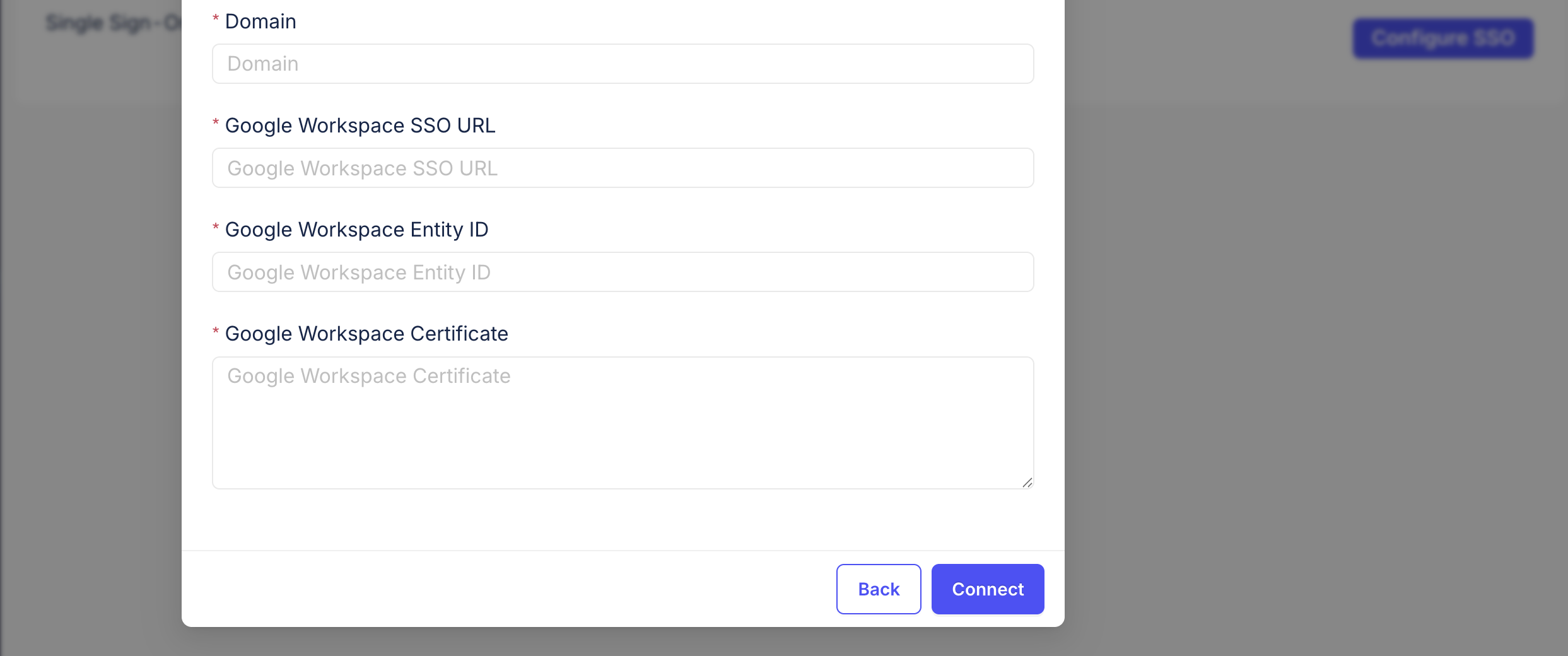
- Go back to Levo and fill in the details to connect your Google Workspace app:
- Connection Name: An identifier for the connection.
- Domain: Email domain of your organization users.
- Google Workspace SSO URL: The SSO URL you copied from Google in step 6.
- Google Workspace Entity ID: The Entity ID you copied from Google in step 6.
- Google Workspace Certificate: The Certificate you copied from Google in step 6.
After that, you should be able to use this custom app to login to Levo using Google Workspace.
- From the Google Apps launcher (the grid icon next to your profile picture on any Google page), click on the Levo app icon to be redirected to the Levo Dashboard.
Was this page helpful?