Multi-factor authentication
If your login asks for a one-time code after the password — an SMS code, an email code, or an authenticator app — turn this on alongside Username and password. It isn't a separate strategy of its own; it's a setting on the same login the scanner already drives.
The scanner never guesses or brute-forces the code. It fills the password step itself, and then, when the code prompt appears, does one of three things depending on the mode you pick:
| Mode | What happens |
|---|---|
| None | The scanner doesn't expect a code prompt. If one shows up anyway, the login fails. |
| Static code | You give the scanner a fixed code up front. Only works for test/demo apps with a hardcoded MFA value — a real TOTP or SMS code changes every time, so a fixed value won't pass a real check. |
| Ask a person | The scanner pauses, and a pending request appears on the Levo dashboard for someone to answer with the real code — read off a phone, an inbox, or an authenticator app. |
Ask a person is the one to use for a genuine 2FA-protected login. Nobody has to give the scanner access to SMS or email — a person reads the code from wherever it legitimately arrives and types it in.
When to use
- Your login has a second step after username + password: a one-time code from SMS, email, or a TOTP authenticator app. Any code length or format works.
- You want the scan to test pages behind that login, not just the public surface in front of it.
What you'll need
- Everything Username and password needs — login URL, username, password.
- If using Ask a person: someone available to answer the prompt when it appears, for as long as the wait window allows.
- If using Static code: only for a test account with a fixed/hardcoded MFA value — not for a real authenticator.
Dashboard
In Create Scan → Step 1, pick Scan, enter your Target URL, and choose a Test Runner.
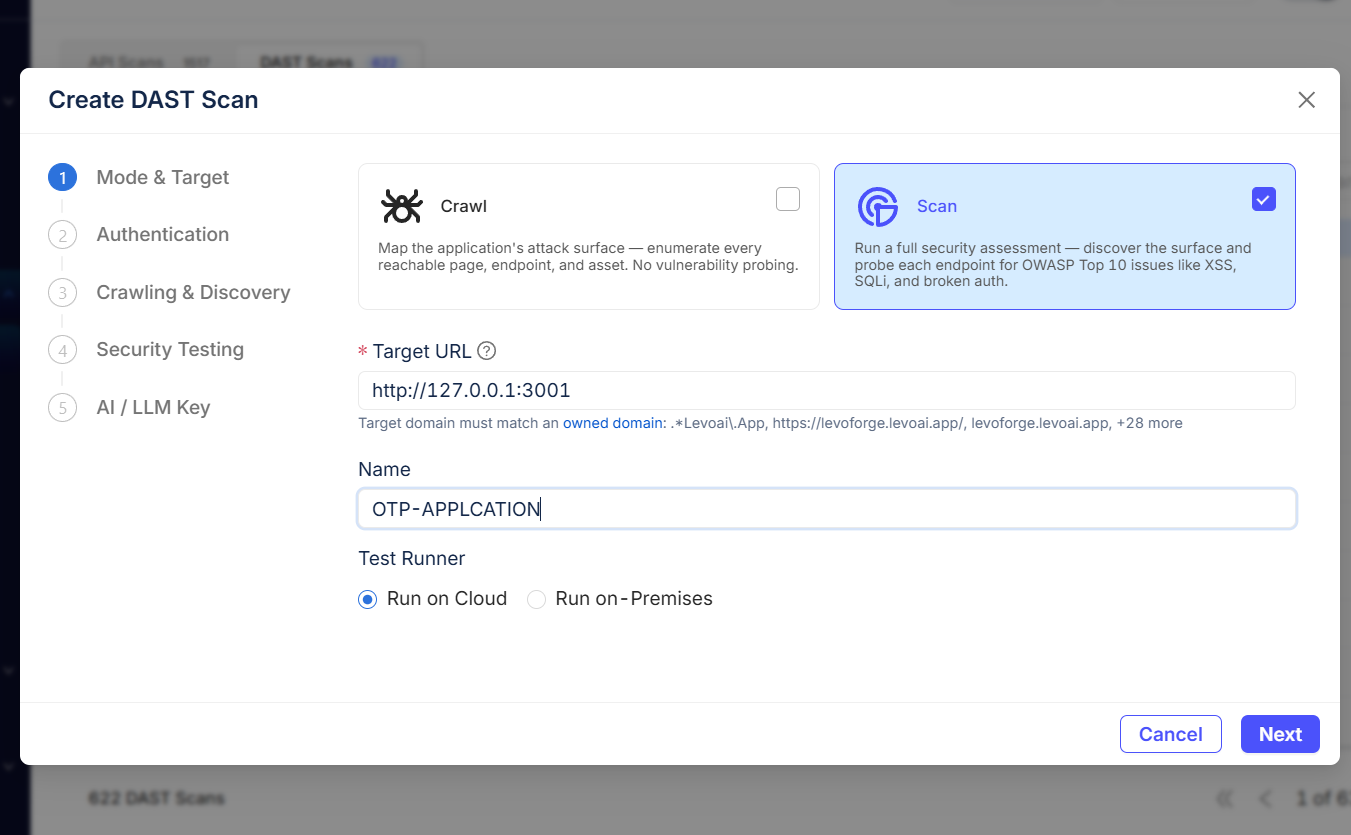
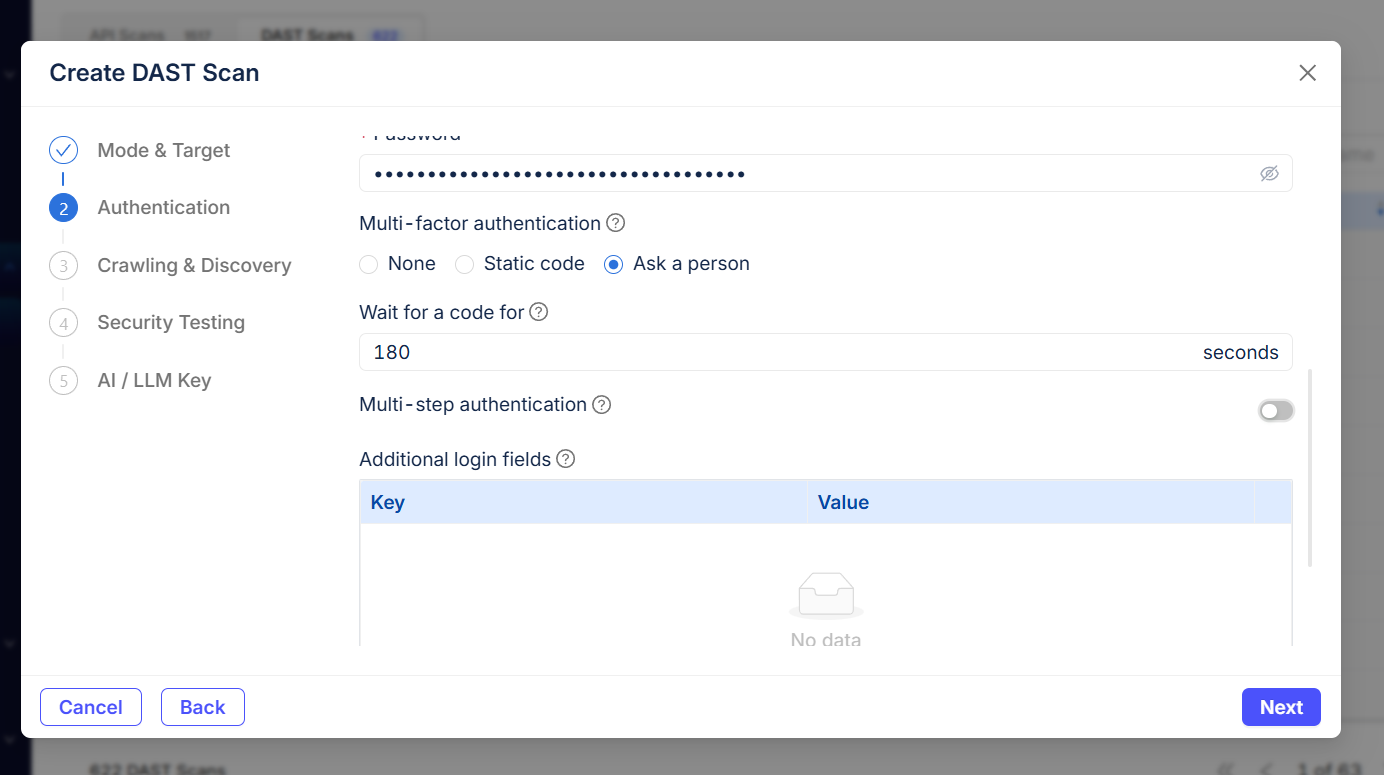
Under Multi-factor authentication, pick Ask a person (or Static code for a hardcoded test value). Set Wait for a code for — 180 seconds is the default; give yourself enough time to notice the prompt and read the code. Leave Multi-step authentication off unless your login is staged as separate username-then-password screens rather than one combined form.
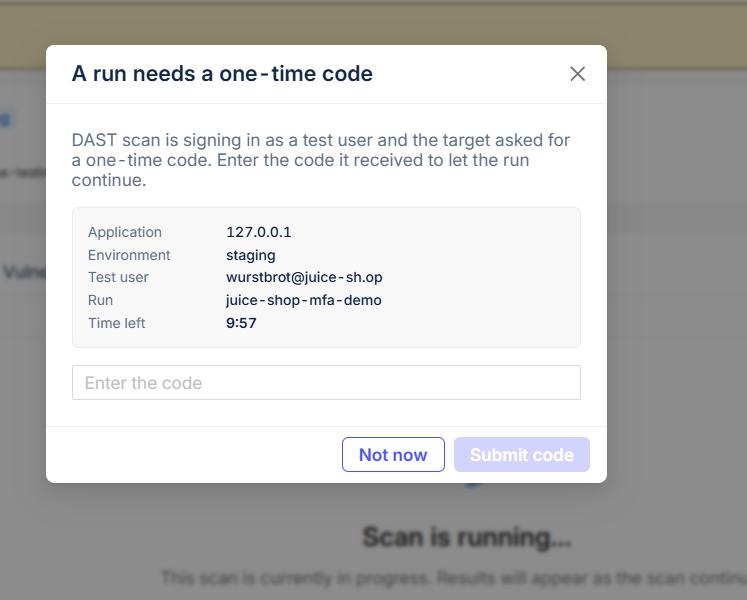
When the scan reaches the code prompt, a modal appears on the Scans pages — the scan list or any scan's detail page — showing which app, environment, test user, and scan it belongs to. Type the code in and submit. If more than one scan is waiting at once, they're queued: you're shown one at a time, soonest-expiring first.
Already on the scan's detail page when it hits the code prompt? The same request shows up there too, so you don't have to go looking for it.
How "Ask a person" actually works
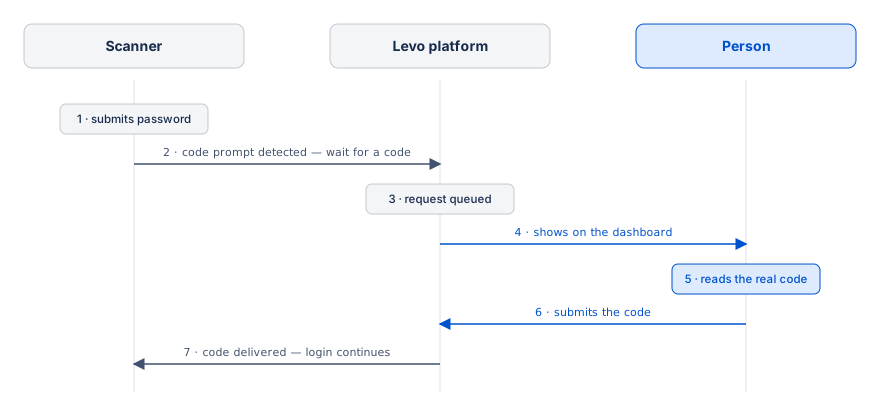
A person answers. The request appears on the Scans pages, showing which app, environment, test user, and scan it's for. Whoever's watching reads the real code off the delivery channel and types it in.
The scanner receives it and continues. The code is typed into the app's own form and submitted, exactly as a person would do it by hand.
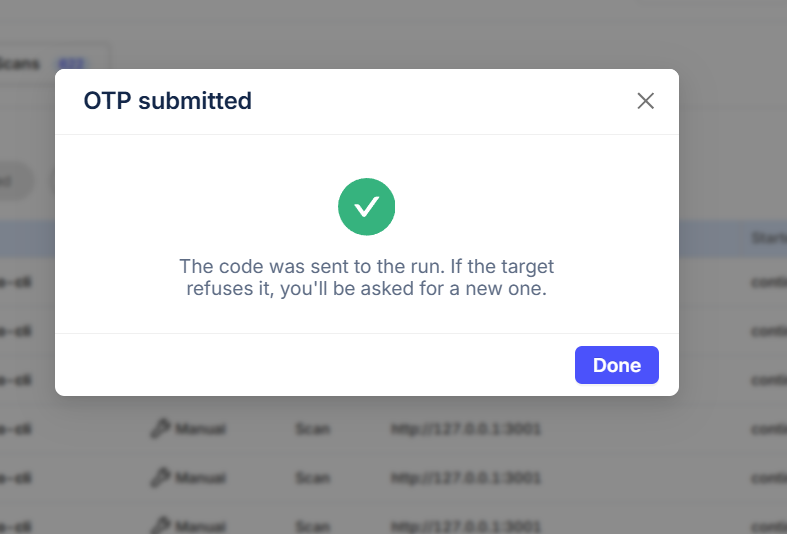
Only the fact that a code was received is logged — not the code itself, so a captured scan log can never leak a live one-time code. The platform holds the code only long enough to hand it to the scanner, then it expires.
CLI
Default — 180-second wait. --mfa-mode relay alone is enough; you don't need to set a wait time to get one:
docker run --rm -it --shm-size=1g \
  -e LEVOAI_AUTH_KEY -e LEVOAI_ORG_ID -e LEVOAI_ENV_ID -e LEVOAI_BASE_URL \
  -e SCAN_USERNAME -e SCAN_PASSWORD \
  levoai/levoai-shadownet:stable \
  scan https://app.example.com \
    --auth form \
    --username "$SCAN_USERNAME" --password "$SCAN_PASSWORD" \
    --login-url https://app.example.com/login \
    --mfa-mode relay
Configurable — a different wait time. Add --otp-wait-seconds only when 180s isn't right for you — a distributed team, a slower delivery channel, or a CI run where you want to fail fast instead of waiting the full default:
docker run --rm -it --shm-size=1g \
  -e LEVOAI_AUTH_KEY -e LEVOAI_ORG_ID -e LEVOAI_ENV_ID -e LEVOAI_BASE_URL \
  -e SCAN_USERNAME -e SCAN_PASSWORD \
  levoai/levoai-shadownet:stable \
  scan https://app.example.com \
    --auth form \
    --username "$SCAN_USERNAME" --password "$SCAN_PASSWORD" \
    --login-url https://app.example.com/login \
    --mfa-mode relay \
    --otp-wait-seconds 600
Either way, the scan blocks at the login step until someone answers the request on the dashboard, or the wait time runs out. For a scan started from the CLI, answer it from that scan's detail page under Scans. The wait time can also come from the LEVOAI_OTP_WAIT_SECONDS environment variable.
For a test account with a fixed MFA value instead of a real code:
  --mfa-mode static \
  --mfa-static-code 123456
--wait-for-mfa pauses the scan so you can type the code straight into the browser window yourself, instead of relaying it through the platform. It needs a visible browser, so run the CLI locally with --no-headless — it won't work in the Docker image. Use it instead of --mfa-mode, not alongside it.
levo-dast.yml
levo-dast.yml doesn't have an MFA section — set the mode with the --mfa-mode / --otp-wait-seconds flags, which work alongside a YAML file. A fixed MFA code never goes in YAML either: like passwords, use --mfa-static-code or an environment variable at runtime.
Verifying the login worked
A code prompt that never actually clears is easy to miss, because the scan still finishes and still reports findings — it just tested less than it looks like. Before trusting a scan's results, check:
- The scan's Auth status on the detail page — did it land on a real page past the login, or is it still showing the login/code screen?
- The crawled pages under Discovery — are they real app pages, or is the login/code form itself showing up as "content"?
- If you asked for Ask a person and nobody answered in time, the scan should show a login failure, not a completed run with an empty crawl.
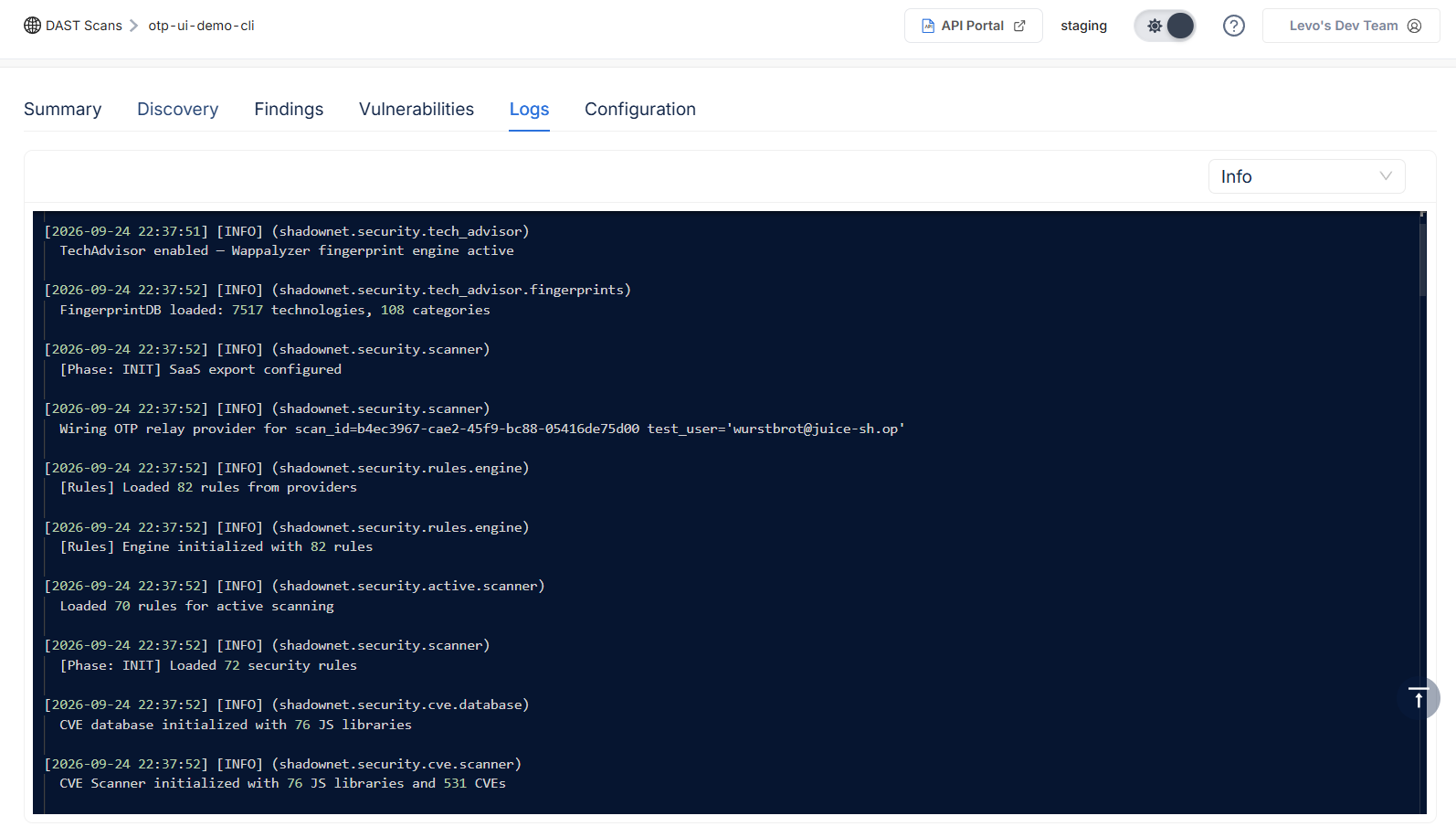
- The scan's Logs tab confirms the relay actually engaged — look for a line like
Wiring OTP relay provider for scan_id=… test_user=…right after the scan initializes.
Next
- Username and password — MFA builds on this; set it up first.
- Authentication overview — the other strategies MFA can pair with.
- CLI reference — the
--mfa-mode,--mfa-static-code,--otp-wait-secondsand--wait-for-mfaflags.